

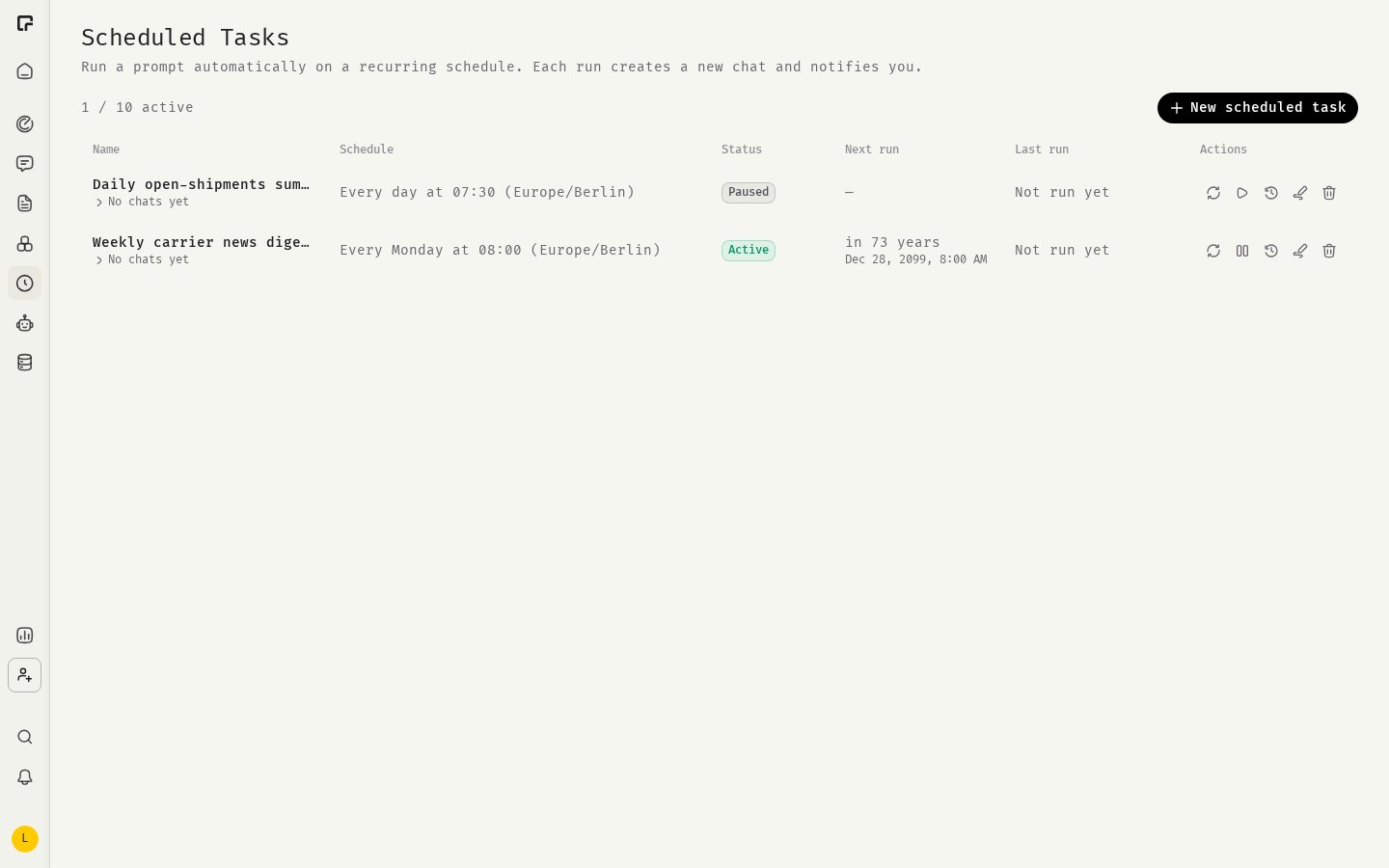
Create a scheduled task
- In the main navigation, click Scheduled Tasks.
- Click New scheduled task.
- Enter a Name and the Prompt, which is what the AI should do on every run.
- Optionally, choose an Assistant, a Model and a Toolset (integrations). Without a model choice, the task uses the default model.
- Optionally, attach files that every run should use, for example a PDF the prompt refers to.
- Under Chat options, turn on the tools the run may use: Web search, Reasoning, Image generation or Document generation.
- Set the Schedule (see below).
- Save the task.
Scheduled runs cannot ask you questions, so interactive questions are always off.
Schedules
Every schedule uses the Timezone you choose, and adjusts for daylight saving time. The form shows a summary and the next run time, for example “Every Monday at 08:00 (Europe/Berlin). Next run: …”.
Manage your tasks
The Scheduled Tasks page lists each task with its Schedule, Status, Next run and Last run. Use the actions on a row:- Run now starts a run right away. It starts within a minute.
- Pause stops future runs. Resume starts them again.
- Run history shows each run with its result, and Open result opens the chat it produced.
- Edit and Delete. Deleting a task removes it and its run history. Chats created by earlier runs are kept.
Run status
If a run fails because of a temporary problem, 48° retries it once after five minutes. If a task fails three times in a row, it is set to Auto-paused and you are notified. Fix the cause, then click Resume.
Limits
- Up to 10 active scheduled tasks per person. Pause or delete a task to create a new one.
- Up to 10 files per task, each up to 25 MB (images up to 5 MB).
- If a run is due while the previous run of the same task is still in progress, it is skipped. Missed runs are not made up later.
Related
Prompt Studio
Save prompts you use often.
Assistants
Give a task a fixed set of instructions.
Integrations in chat
Use connected tools in a run.
Usage limits
Spend limits that can skip a run.