

The three levels
Each level has its own member list, and each membership carries a role: Owner, Manager or Viewer. See Roles and permissions.
How membership flows down
A member’s organization role also applies in every workspace and team of that organization, unless they have a direct role there. The same is true one level down: a workspace role applies to all teams in that workspace.- A Manager of the organization acts as a Manager in every workspace and team.
- If you give that person a direct Viewer role in one workspace, Viewer applies in that workspace and its teams instead.
- Adding someone to a team automatically adds them to the parent workspace and organization as a Viewer if they aren’t a member yet.
How the hierarchy controls sharing
Assistants, prompt templates and toolsets can be private or shared with a team, a workspace or the whole organization. Everyone in the chosen scope can use them, including Viewers. Skills can be private or shared with a team.
See Visibility and governance for who can share and edit at each scope.
Each level has its own AI context
Organizations, workspaces and teams each have an AI Context field. Use it to describe your industry, products, ways of working or tone. Assistants can look up this context during a chat when a question is about your organization, workspace or team. See Company context.Plan your structure
1
Start with one organization
Most companies need a single organization. Create a second one only for a truly separate entity, such as a subsidiary with its own billing.
2
Add workspaces for large areas
Create a workspace per department or business unit, for example Sales, Engineering and Operations.
3
Add teams for day-to-day groups
Create teams for the groups that share assistants and prompts every day.
4
Give roles at the highest level that fits
Give organization-wide roles to the few people who run 48° for everyone. Give Manager roles at workspace or team level to the people who look after one area.
Where to manage it
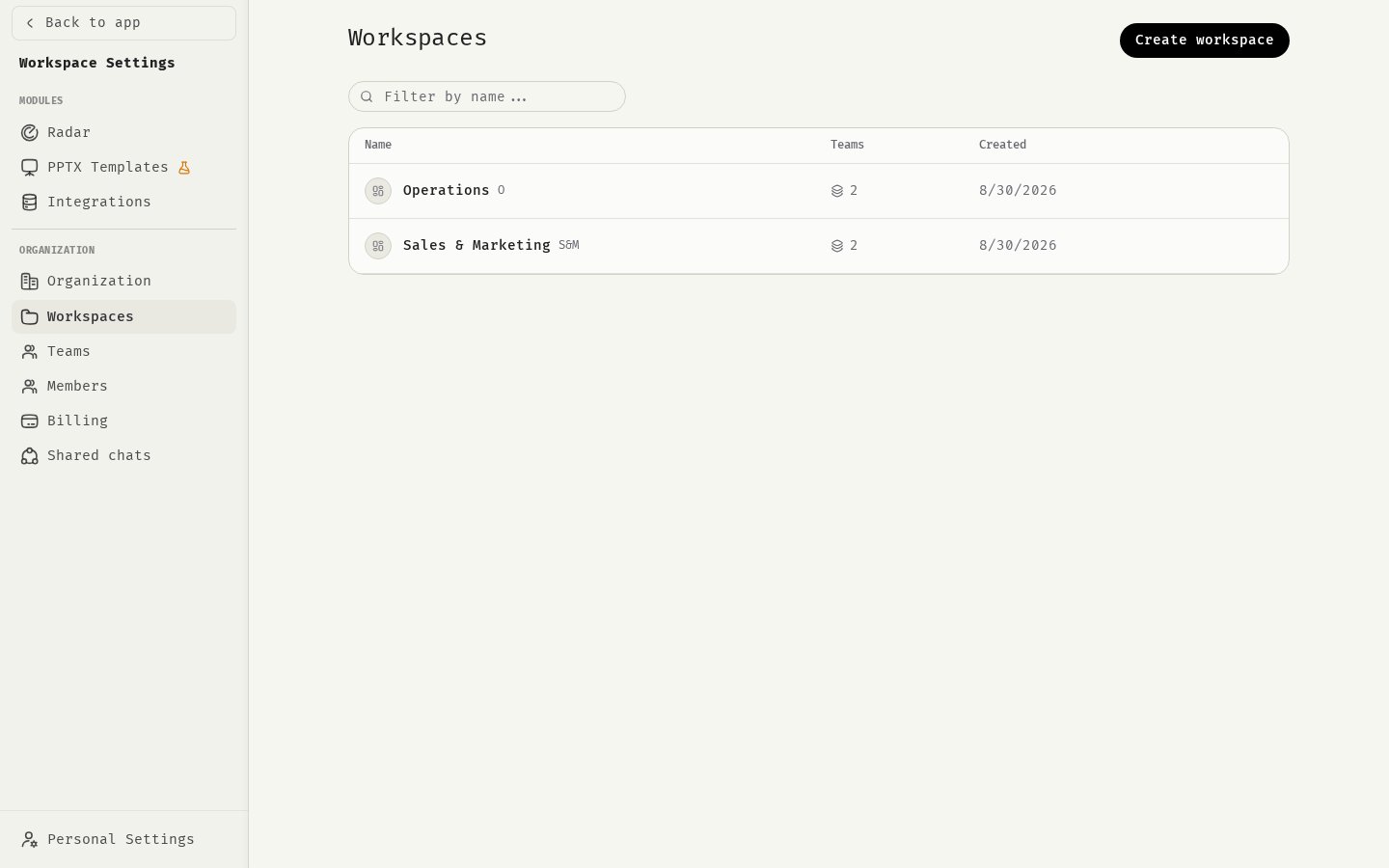
Open the profile menu in the sidebar and select Workspace Settings. The Organization section has pages for Organization, Workspaces, Teams and Members. All pages act on the organization that is currently selected in the sidebar.Related
Roles and permissions
What Owners, Managers and Viewers can do at each level.
Manage workspaces and teams
Create, edit and delete workspaces and teams.
Invite members
Bring people into your organization.
Organizations, workspaces and teams
The member’s view of the hierarchy.