

Open Prompt Studio
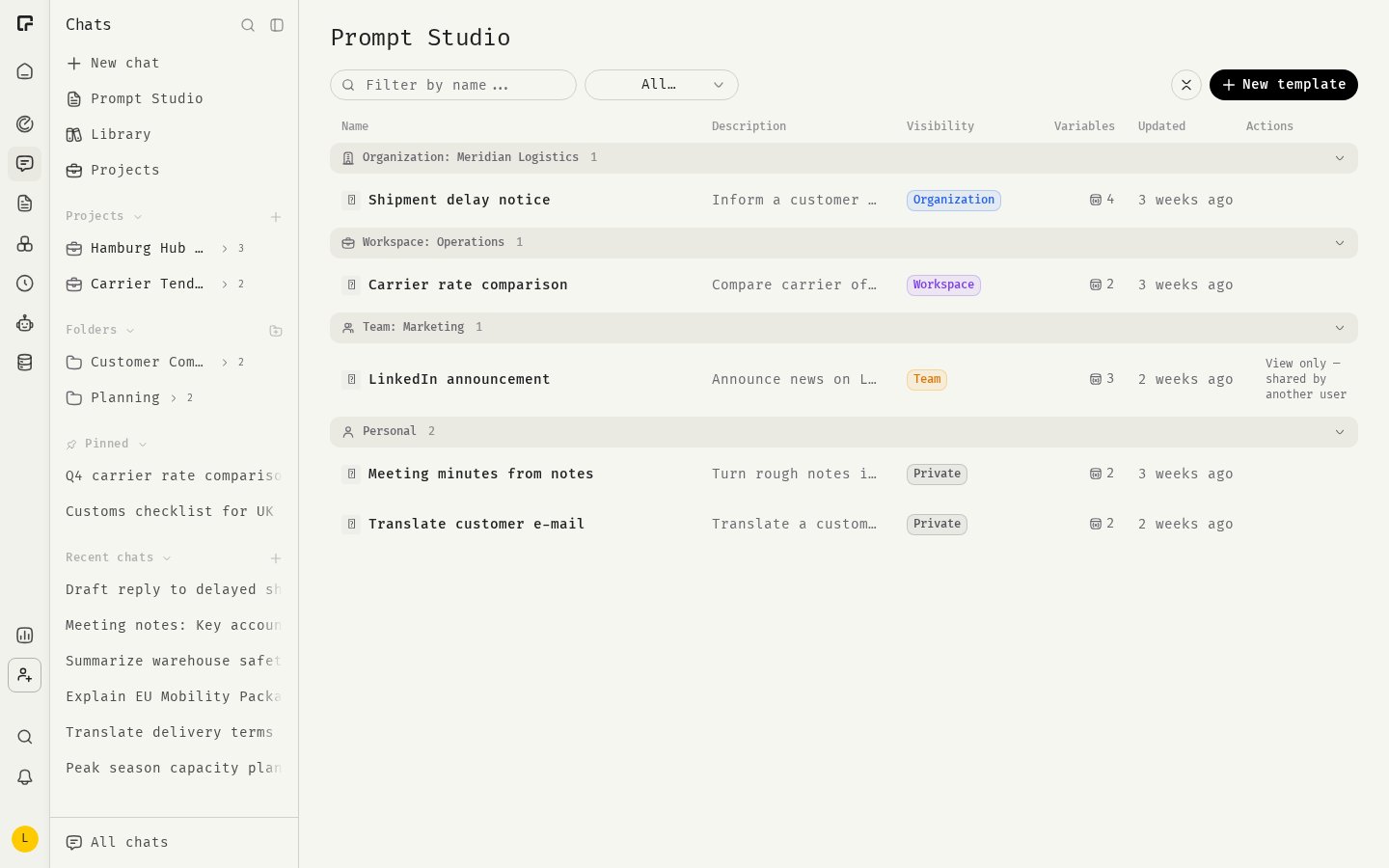
In the Chats sidebar, click Prompt Studio. The page lists every template you can use, grouped by where it is shared: Personal, Team, Workspace and Organization. Use the name filter and the visibility filter to find a template.Create a template
- In Prompt Studio, click New template.
- Under Identity, choose an Icon, and enter a Name and a one-line Description.
- Under Content, write the Prompt body.
- Add variables for anything that changes from use to use (see below).
- Under Sharing, choose who can see the template.
- Click Create template.
Variables
A variable is a placeholder in double curly braces, such as{{customer_name}}. When someone uses the template, 48° asks them to fill in each variable before the text goes into the composer.
To add a variable:
- Place the cursor in the prompt body and click Insert variable.
- Enter a Name. Use letters, numbers and underscores only, and don’t start with a number.
- Optionally, add a Short description. It is shown as help text when someone fills in the template.
- Choose an Input type: Single line or Multi-line.
- Optionally, set a Default value.
{{topic}} directly into the body, 48° registers it as a variable when you save. Use Insert variable afterwards if you want to add a description.
Example
Sharing
You need the Manager or Owner role in a team, workspace or organization to share a template there. Without it, you can only create private templates. Shared templates can only be edited by Managers and Owners. Templates shared by others are marked View only — shared by another user.
Use a template in a chat
From the chat:- In the composer, click + (or type @).
- Open Templates and pick a template. You can search by name.
- If the template has variables, fill them in. The dialog shows a Preview.
- Click Insert. The text goes into the composer, where you can edit it before sending.
- Click Start Chat on a template. A new chat opens with the template in the composer. If the template has variables, you fill them in there.
Edit or delete a template
In Prompt Studio, use the Edit and Delete actions on a template’s row. Deleting a shared template removes it for everyone who could see it. This cannot be undone.Related
Prompting basics
Write prompts that work.
Skills
Reusable instructions the model loads when needed.
Scheduled tasks
Run a prompt on a schedule.
Chat basics
The composer and the + menu.