

Before you start
48° is invitation-only. You can sign in once an Owner or Manager of your organization has invited your email address. If you try to sign in without an invitation, you see a message that access is invitation-only. In that case, ask your organization admin to invite you.Accept your invitation
- Open the invitation email and click the link.
- Sign in if you are asked to (see below).
- Review the organization name and your role, then click Accept Invitation.
- Click Go to Dashboard.
Sign in
Open the 48° login page and choose one of these options.- Email code
- Google, Microsoft or GitHub
- Enter your work email under Email and click Send code.
- Check your inbox for a 6-digit code. It can take up to two minutes to arrive, so also check your spam folder.
- Enter the code under Verification Code and click Verify code.
48° has no passwords. You sign in with an emailed code or link, or with a Google, Microsoft or GitHub account.
Send your first message
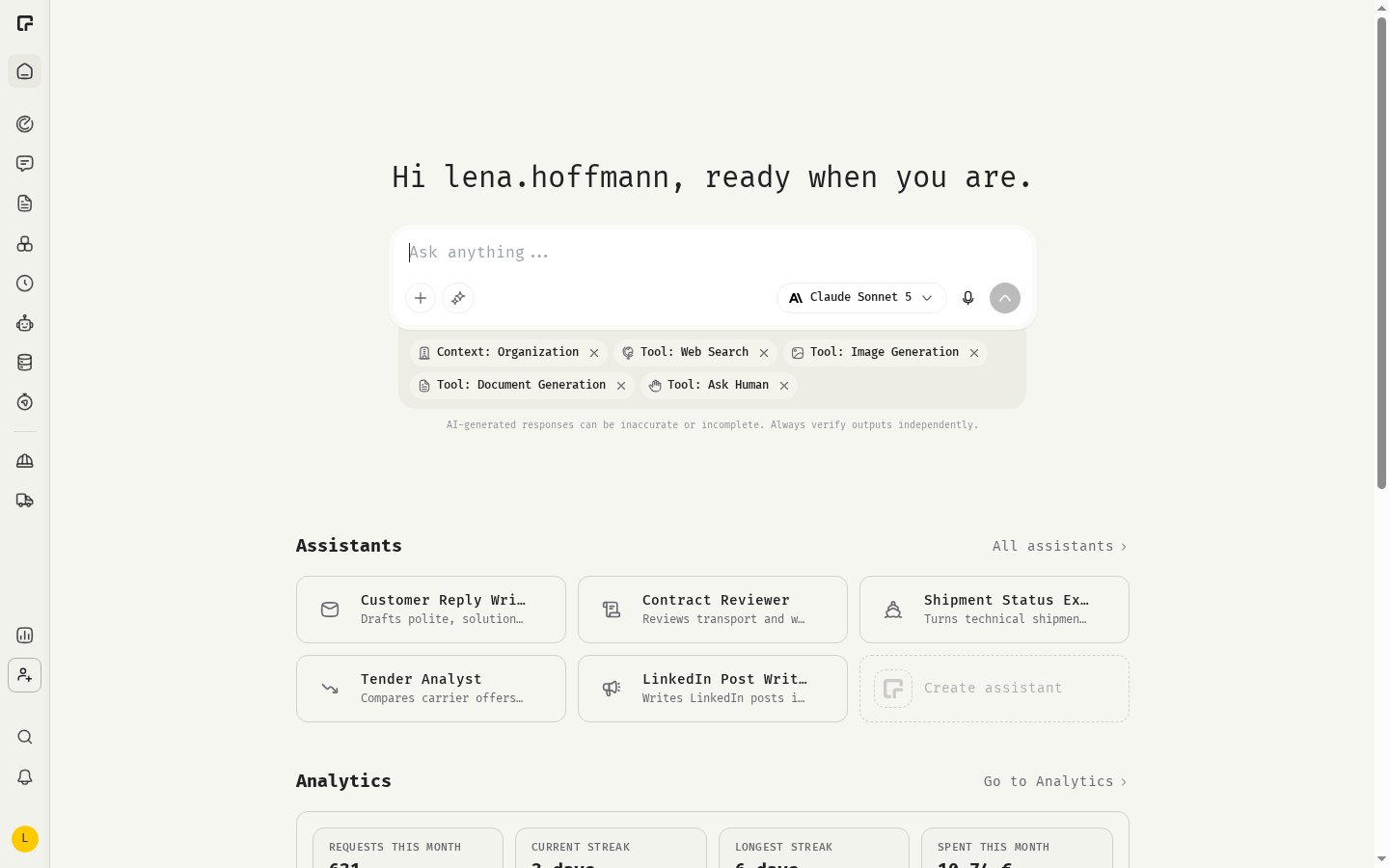
After signing in you land on Home, which greets you with a message box.- Type your question in the box that says Ask anything….
- Optional: click the model name to choose a different model. The picker shows each model’s speed, cost and capabilities.
- Press
Enteror click the send button. - The first time you press
Enter, 48° asks you to Choose your send shortcut. Pick Enter to send, Ctrl+Enter to send (Cmd+Enteron Mac) or Shift+Enter to send, then click Save Preference. You can change it later.
Next steps
- Add your name and picture in Profile.
- Pick a default model and the tools new chats start with in Chat settings.
- Learn how organizations, workspaces and teams affect what you see.
Related
Chat basics
Models, tools and message actions.
Attachments
Add files and images to a chat.
Interface overview
Find your way around 48°.
Prompting basics
Write prompts that get good answers.