

The assistant list
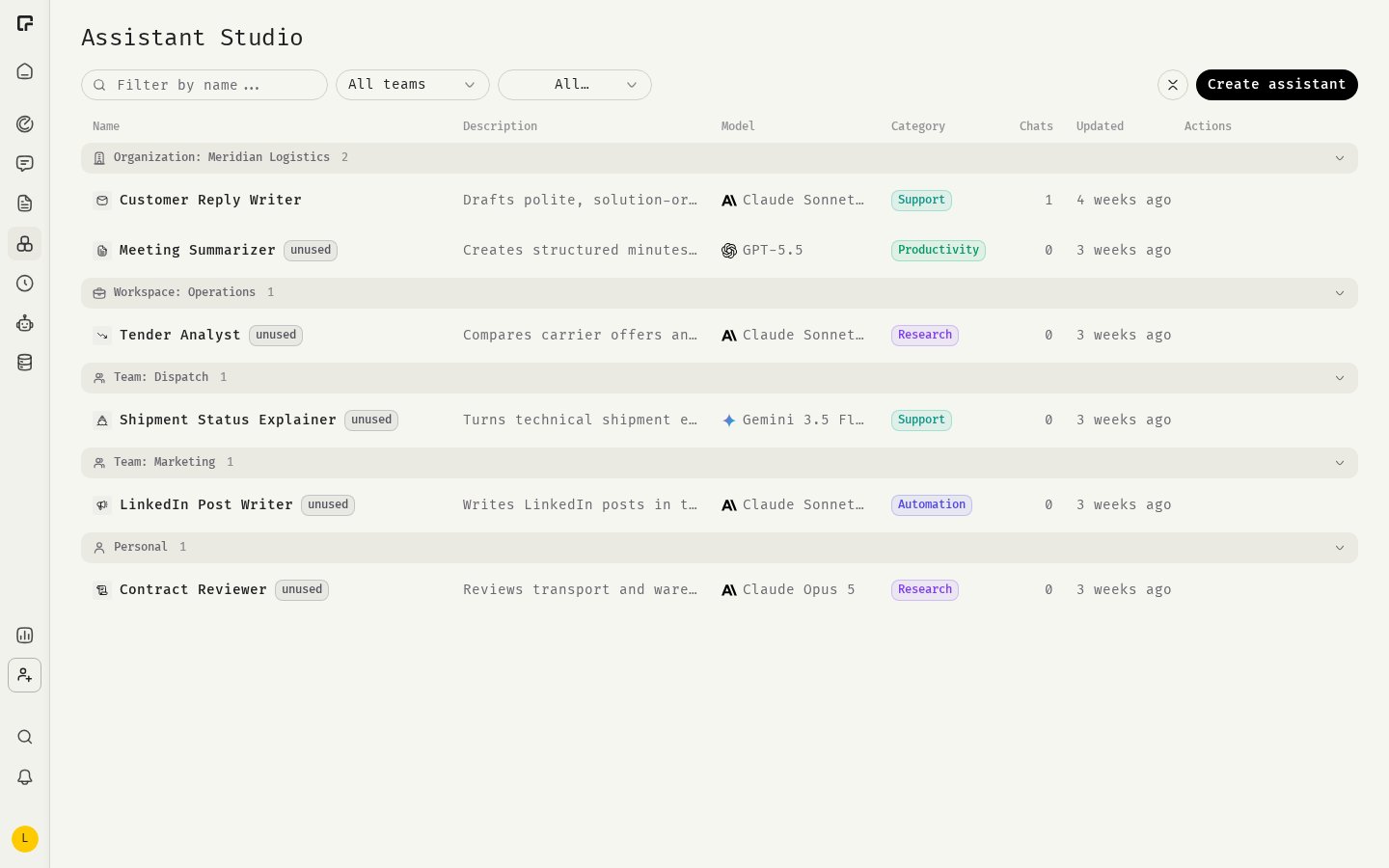
Each row shows the assistant’s Name, Description, Model, Category, number of Chats and when it was last Updated. An assistant that has never been used carries an unused tag. When no filter is active, assistants are grouped by who they are shared with:- Organization: {name}
- Workspace: {name}
- Team: {name}
- Personal (your private assistants)
Filter the list
- Filter by name… searches names and descriptions.
- The team filter shows All teams, Personal (private assistants only) or one team.
- The category filter shows All categories or one category: Research, Support, Automation or Productivity.
Start a chat
Click an assistant’s row or name, or hover the row and click Start Chat. A new chat opens with the assistant selected.Create an assistant
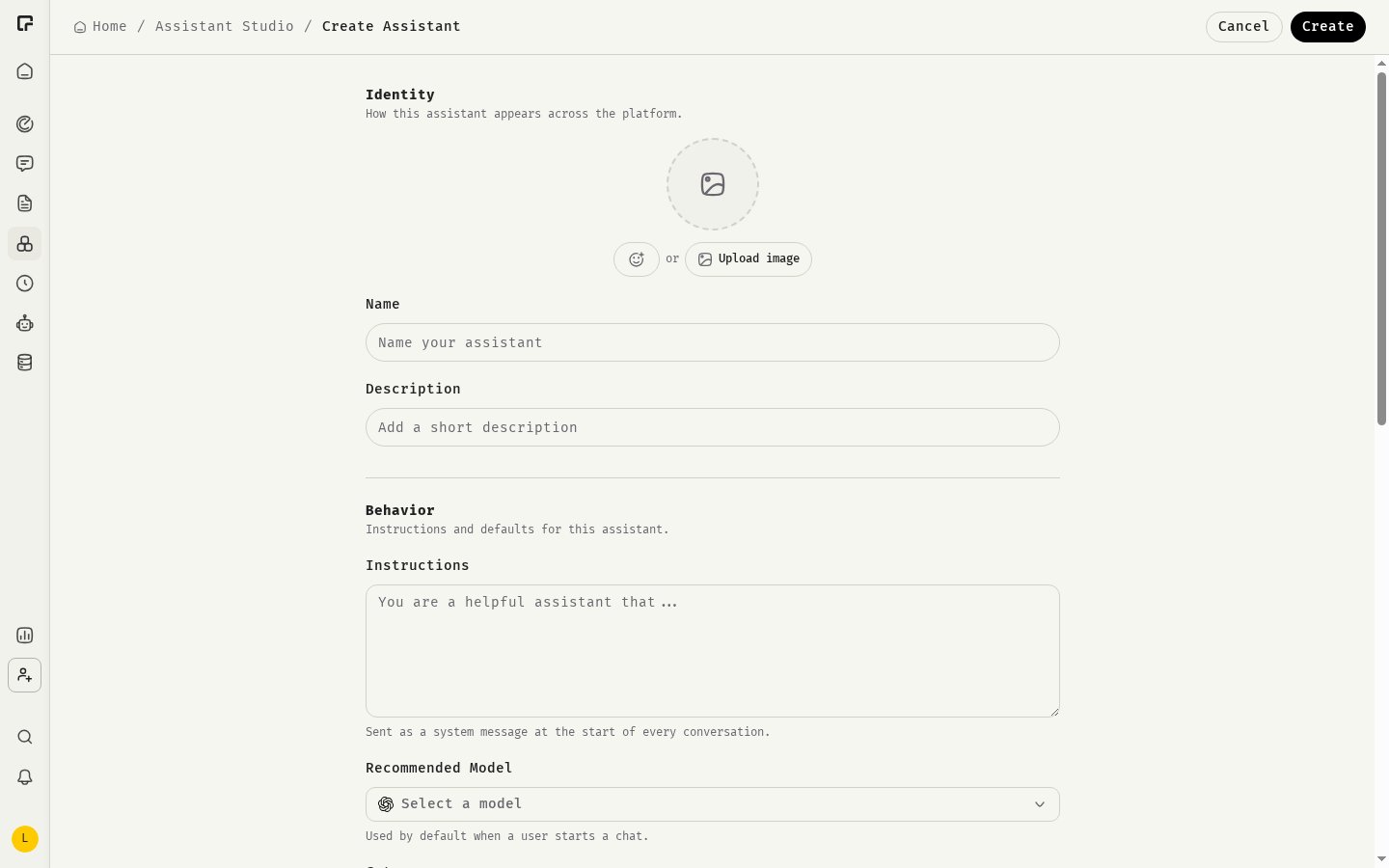
- Click Create assistant.
- Give it a name and write its Instructions. Both are required.
- Set the other options you need. See Configure an assistant.
- Click Create.
Row actions
Hover a row to see its actions:Duplicate an assistant
Duplicating is the way to adapt a shared assistant you can’t edit. The copy is private to you and keeps the description, instructions, recommended model, category, icon or avatar, conversation starters and skills. It keeps the toolset only if you are allowed to use that toolset yourself. Knowledge files are not copied. Upload them to the copy again if you need them.Delete an assistant
Deleting cannot be undone. The assistant’s knowledge files are deleted with it. Existing chats remain, but they are no longer associated with the assistant.Related
Configure an assistant
Every setting in the assistant editor.
Visibility and sharing
Who can use and who can edit an assistant.