

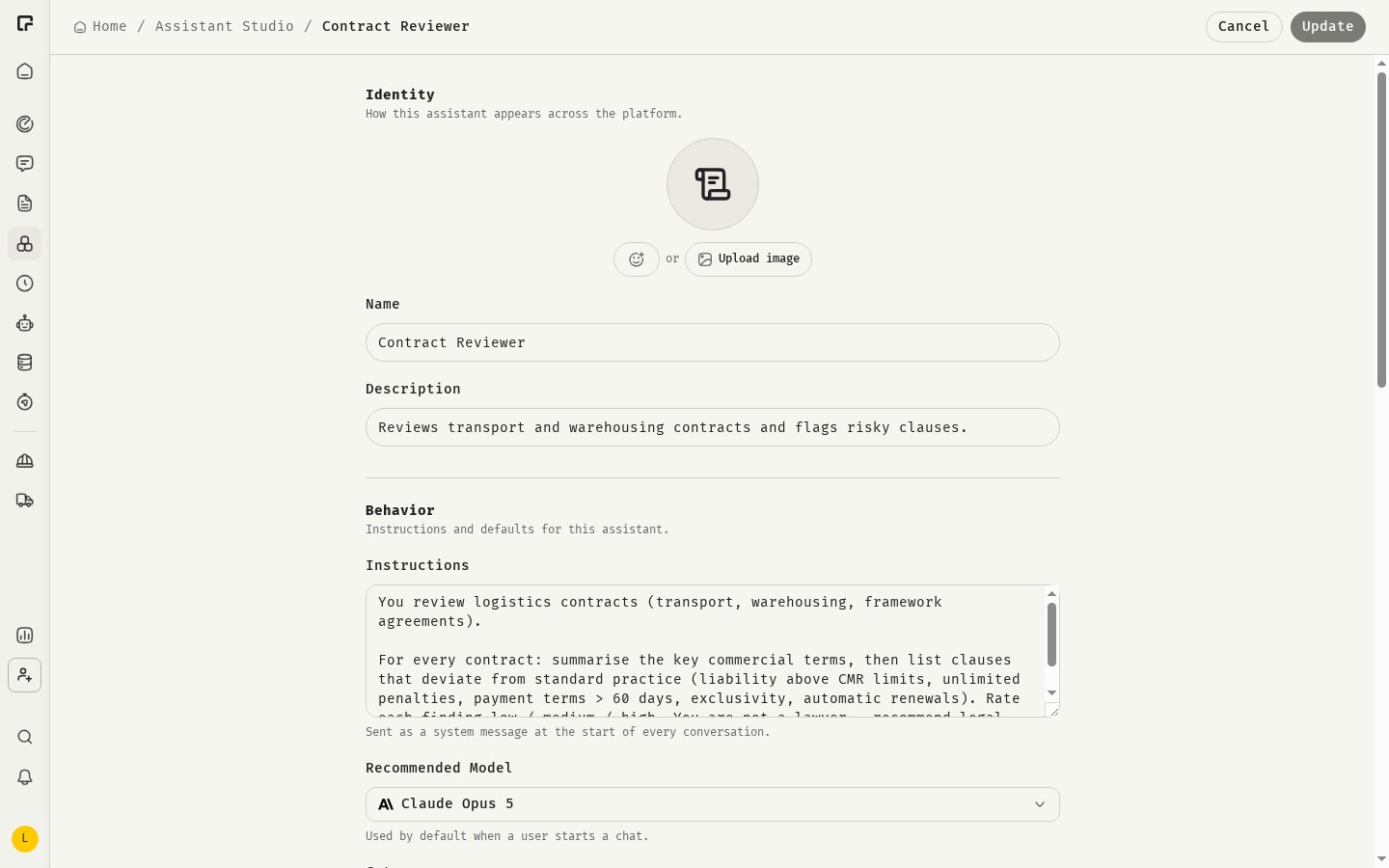
Identity
How the assistant appears across 48°.- Icon / Avatar: pick an icon or emoji, or click Upload image. Images can be PNG, JPEG or WebP, up to 2 MB.
- Name (required): the name colleagues see in the assistant list and the chat picker.
- Description: one short sentence on what the assistant helps with.
Behavior
Instructions
The instructions are the core of the assistant. They are sent as a system message at the start of every conversation. Instructions are required. Write what the assistant is, who it helps and how it should answer:Recommended Model
The model a chat starts on when someone picks this assistant. Choose No recommended model to use each person’s own default. Users can always switch the model in the chat.Category
Optional. Pick Research, Support, Automation or Productivity to make the assistant easier to filter in Assistant Studio.Conversation starters
Conversation starters are prompt templates shown as chips above the chat input when the assistant is selected. You can add up to four.- Click Add template and choose a template from Prompt Studio.
- Use Move up and Move down to set the order.
- Click Remove starter to drop one.
Tools
Optional extensions that expand what the assistant can do. This section only shows the options your organization has turned on.- Toolset: tools from your connected integrations. See Tools and toolsets.
- Skills: skills and skill groups the assistant can load when relevant.
- Newsroom and Transport order → v4 CSV: module tools for organizations that use Newsroom or Freightcheck.
Skills
Click Choose skills and select skills or skill groups. The assistant sees each skill’s name and description and loads the full skill only when it’s relevant. Skills must be shared at least as widely as the assistant:- A private assistant can use any skill you have access to.
- A team assistant can only use skills shared with that team.
- Workspace and organization assistants cannot use skills.
Knowledge
Files you upload here are included as context in every chat that uses the assistant. Drag files onto the upload area or click to browse. Supported are PDF, Word, Excel, CSV and TXT files up to 25 MB each.- When creating: files are uploaded when you click Create. If any upload fails, the assistant is not created.
- When editing: files are saved as soon as you upload or remove them. You don’t need to click Update.
Access
Choose who can use the assistant: Private (only you), Team, Workspace or Organization. You only see the shared options for scopes where you are a Manager or Owner. See Visibility and sharing.Save
Click Create for a new assistant, or Update for an existing one. Update stays disabled until you change something. If you leave with unsaved changes, 48° asks you to confirm. Changes take effect from the next message, including in chats that already use the assistant.Related
Tools and toolsets
Connect an assistant to your integrations.
Prompt Studio
Create templates to use as conversation starters.
Skills
Reusable instructions an assistant loads on demand.
Prompting basics
Write better instructions.