

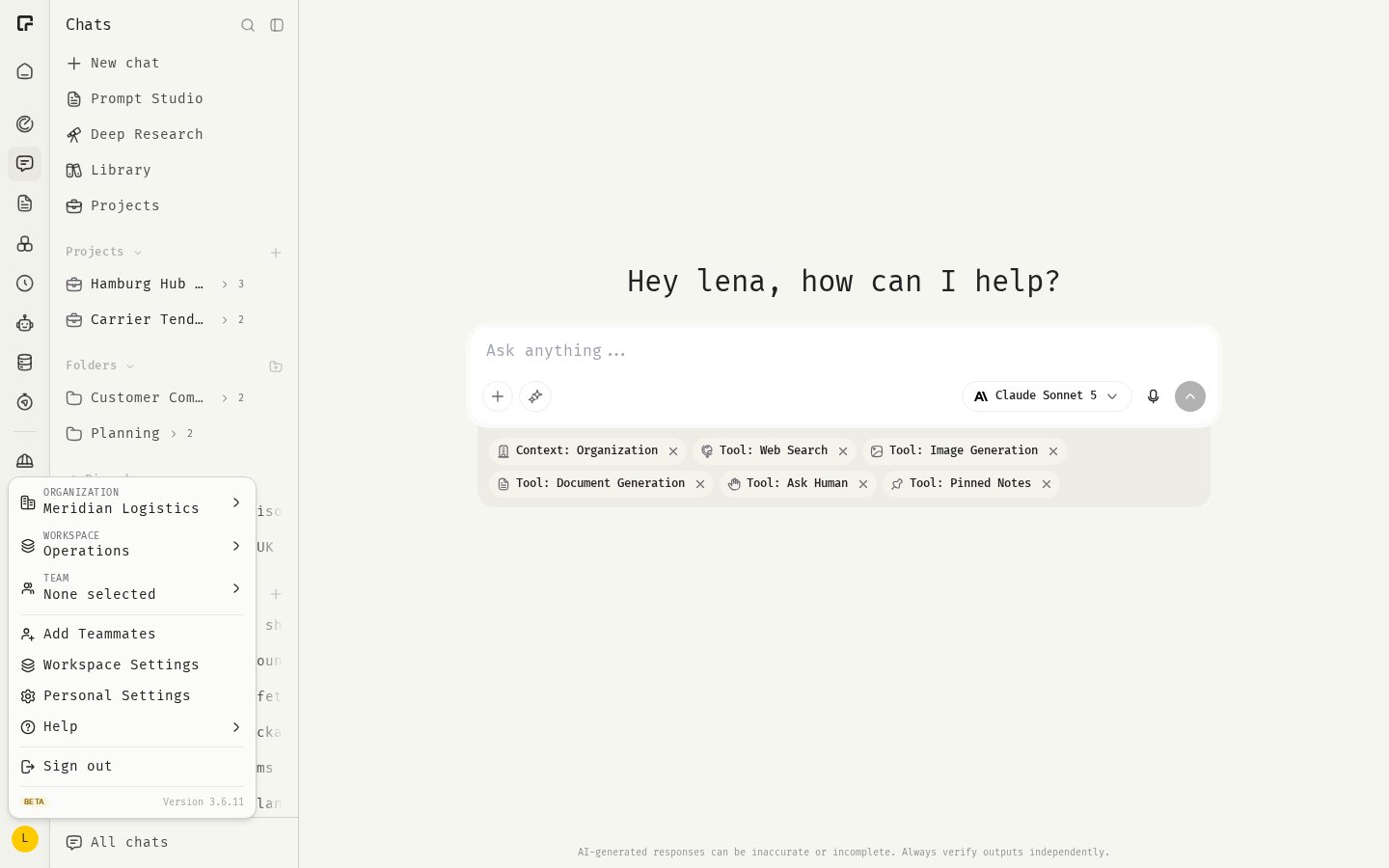
Open your profile
- Click your avatar at the bottom of the sidebar.
- Click Personal Settings.
- Profile opens first. If you are elsewhere in Personal Settings, click Profile.
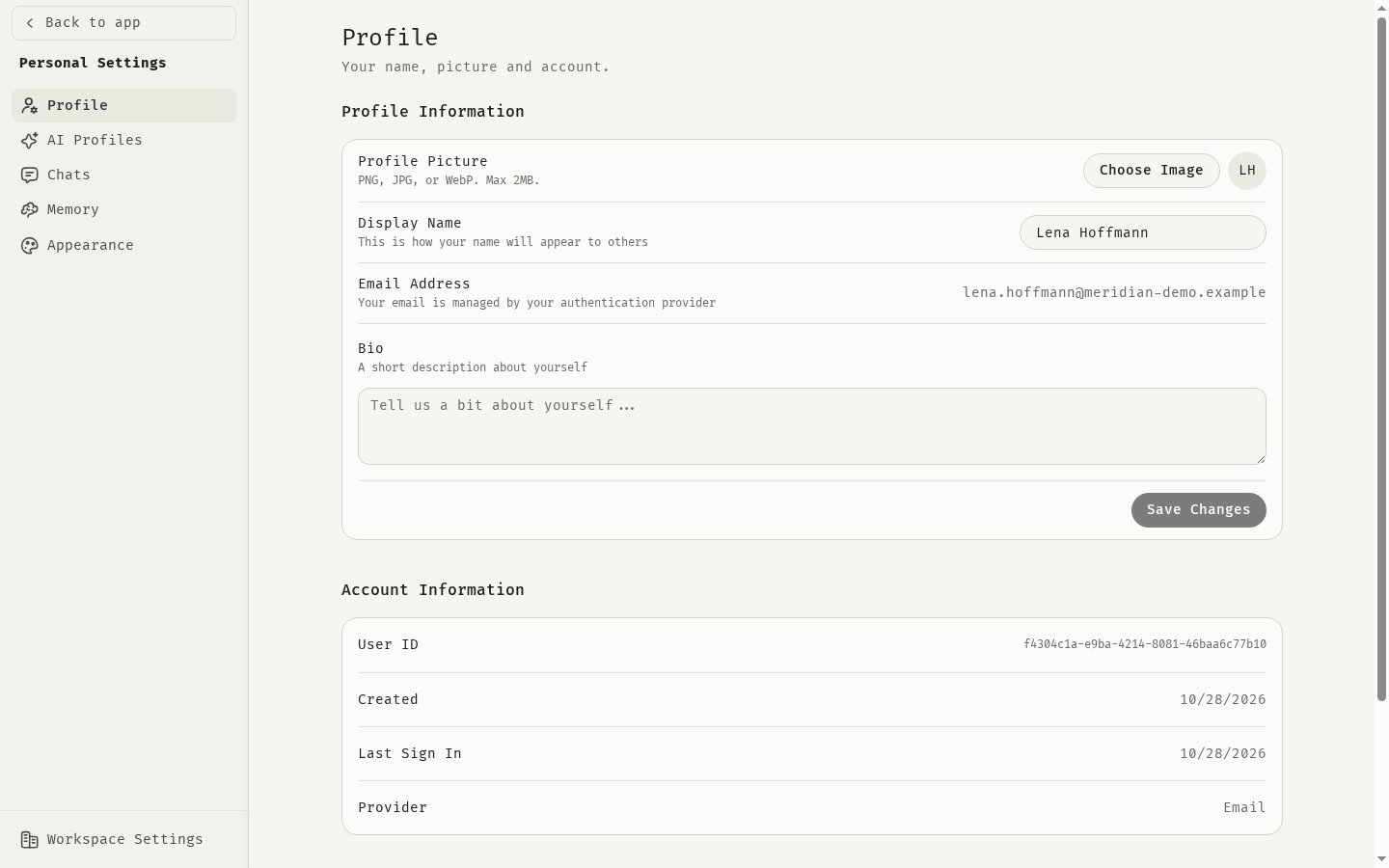
Change your name and bio
- Under Profile Information, enter your Display Name. This is how your name appears to others.
- Optional: add a Bio, a short description about yourself.
- Click Save Changes.
Change your profile picture
- Next to Profile Picture, click Choose Image.
- Pick a PNG, JPG or WebP file of up to 2 MB.
Your email address
Your Email Address is shown but can’t be changed here, because it is managed by your sign-in provider.Account information
The Account Information section shows:Sign out
Under Danger Zone, click Sign Out to sign out of 48° on this device. You can also sign out from the profile menu. To delete your account, see Deleting your account.Your profile is different from an AI profile. An AI profile tells the AI about you and your role, and you can have several. See Profiles and context.
Related
Appearance
Theme, color and language.
Chat settings
Defaults for new chats.
Profiles and context
Give the AI background about you.
Deleting your account
How account deletion works.