

Requires the Freightcheck feature to be enabled for your organization. Ask your administrator if you can’t see it.
Freightcheck runs entirely in your browser. Your files are not uploaded, and no AI is involved in the calculation.
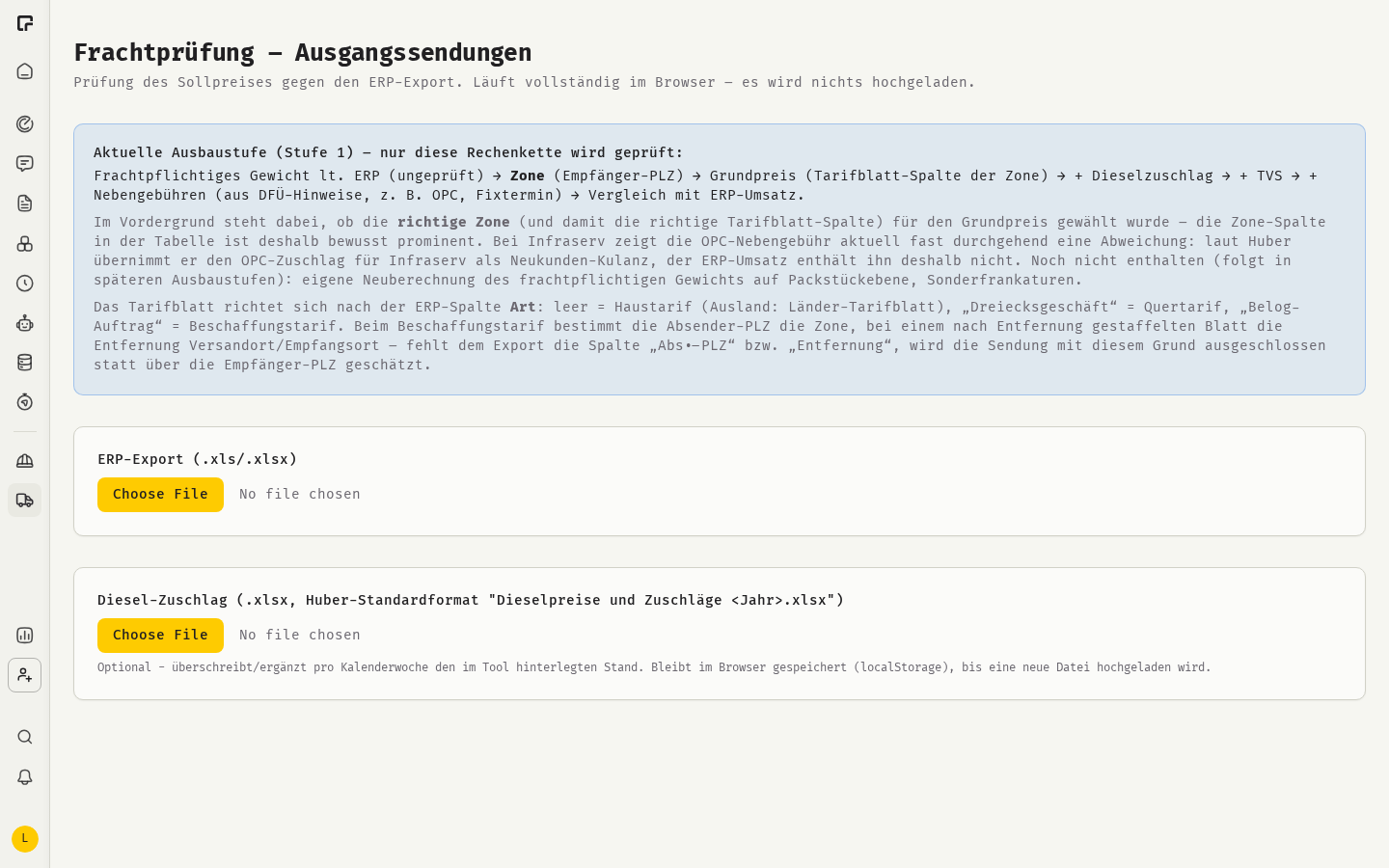
How the target price is calculated
For each shipment, Freightcheck works through these steps:- Takes the chargeable weight from the ERP export as it is.
- Finds the zone from the recipient’s postal code.
- Looks up the base price in the tariff for that zone and weight band.
- Adds the fuel surcharge for the week of the shipment.
- Adds transport insurance, unless the customer has its own insurance.
- Adds extra fees noted in the shipment’s free-text remarks, such as fixed delivery dates.
- Compares the result (Sollpreis) with the booked revenue (ERP-Umsatz) and shows the difference in euros and percent.
Check a shipment list
- Open Freightcheck in the sidebar.
- Upload your ERP-Export as .xls or .xlsx.
- Freightcheck loads the tariffs for the customer automatically. If none are found, upload them yourself: .pdf, .ods, .xls or .xlsx for the house tariff, and .ods, .xls or .xlsx for the other tariffs.
- Upload the current fuel surcharge table (Diesel-Zuschlag) as .xlsx.
- Review the results.
Read the results
The summary at the top shows the total number of shipments (Sendungen gesamt), how many were checked (Im Prüf-Scope), how many differ (Mit Abweichung) and the total difference (Summe Abweichung). Below it, each shipment shows its zone and the full price breakdown: chargeable weight, base price, fuel surcharge, insurance, extra fees, target price, ERP revenue and difference. Shipments that could not be checked show the reason. Use the filters to focus:- Search by order number or town.
- Show only shipments billed too low (Nur zu niedrig abgerechnet) or too high (Nur zu hoch abgerechnet).
- Set a minimum difference in euros (Mind. Abweichung €).
- Show only shipments with warnings, or include shipments outside the check.
Limits
- The chargeable weight is taken from the ERP and not recalculated.
- Special freight terms are not covered.
- Cross-trade and procurement shipments that need the sender’s postal code or the distance are excluded, because the ERP export doesn’t contain these fields.
- Results are shown on screen. There is no export.
Transport orders to CSV in chat
A separate chat tool turns transport orders and delivery notes into an import file for your ERP. It needs its own feature for your organization and must be turned on for an assistant under Tools as Transport order → v4 CSV.- Start a chat with that assistant.
- Attach the transport order: PDF, a photo of the delivery note, an email (.eml), .txt, .docx or .xlsx.
- Ask for the CSV. You can add instructions, for example “ignore page 1”.
- Check the validation result and click Download CSV.
Related
Tools and toolsets
Turn tools on for an assistant.
Attachments
Attach files to a chat.