

Requires the Site Reports feature to be enabled for your organization. Ask your administrator if you can’t see it.
Set up a project
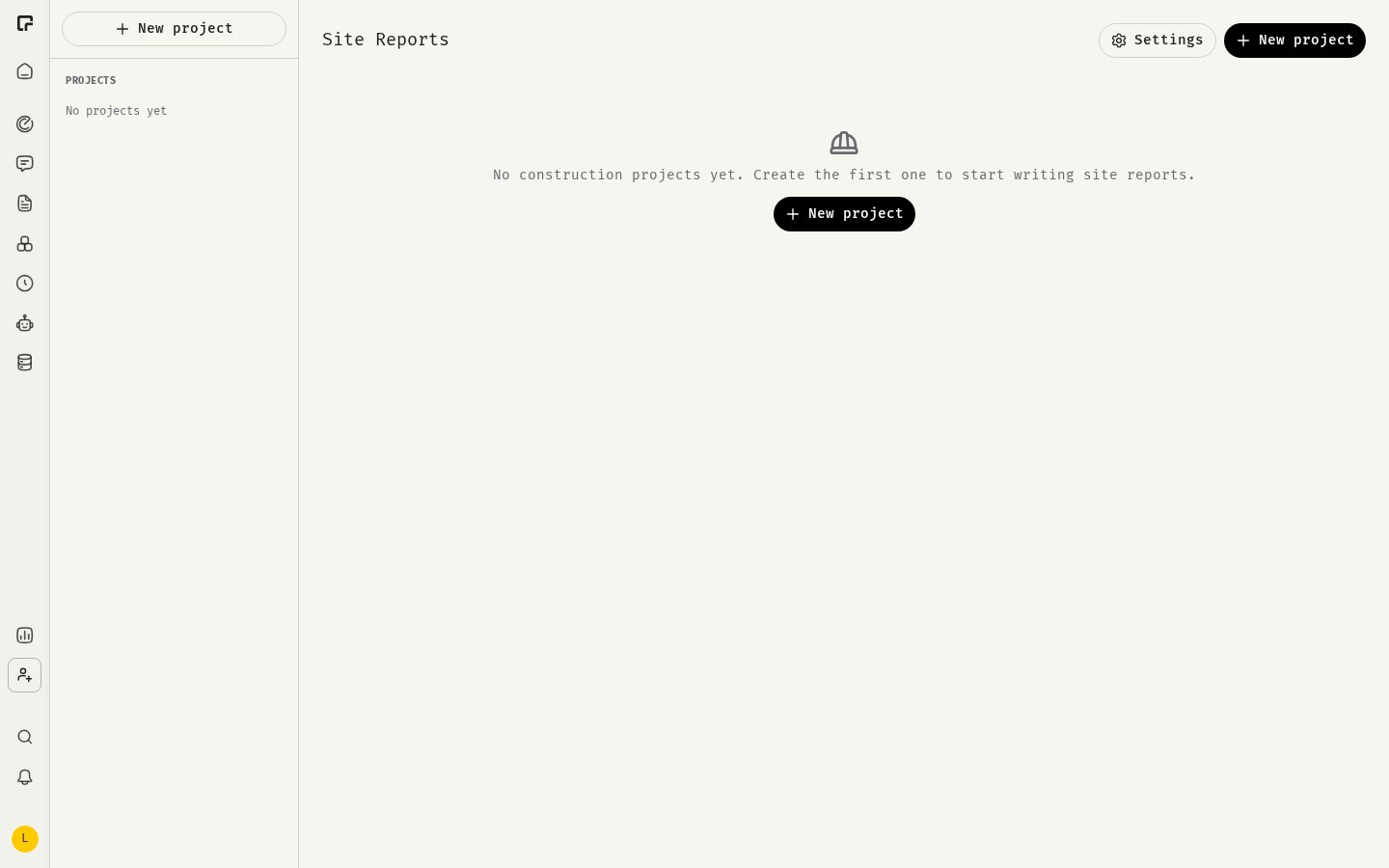
Each report belongs to a construction project. The project details head every report, so you enter them once.- Open Site Reports and click New project.
- Fill in Project number, Project name, Postal code, Town, Type of works, Working hours, Contractor and Signatory (the name of the site manager).
- Save the project.
Write a daily report
- Open a project. You see its Daily reports.
- Open the day you want to report on.
- Under What happened on site today?, click Record and speak, or type your notes.
- Click Apply to the report. 48° fills the report fields from what you said. Everything stays editable by hand.
- If something is missing, click Next question. 48° asks about the missing fields.
- Review the fields and correct anything that’s wrong.
- Weather and the Min. and Max. temperature in °C. After the working day ends, you can Apply the Weather data for this day from the German weather service.
- Performance lines: each line has a Company and the Work carried out. Click Add performance line to add more. Lines carry over from the previous day.
- Headcount: the number of people on site.
- Remarks for today only, or Nothing new.
Generate and share the report
- Click Generate report. If fields are missing, 48° shows Still missing: and the fields to fill in.
- Click Download to save the Word file (.docx), or Share to send it.
Track open items
Open items is the project’s register of Remarks, obstructions and complications. Each entry has a Construction section, an Element, a Raised on date and a Description.- Open items appear in every report automatically until you resolve them.
- Click Mark resolved to close an item, or Reopen to open it again.
- Turn on Show resolved entries to see closed items.
- Items turn amber after 30 days and red after 90 days.
Who can do what
Limits
- Daily remarks: up to 5,000 characters.
- Performance line: company up to 120 characters, work carried out up to 500.
- Open item description: up to 1,000 characters.
Related
Roles and permissions
What Owners, Managers and Viewers can do.
PII protection
How 48° protects personal data.