

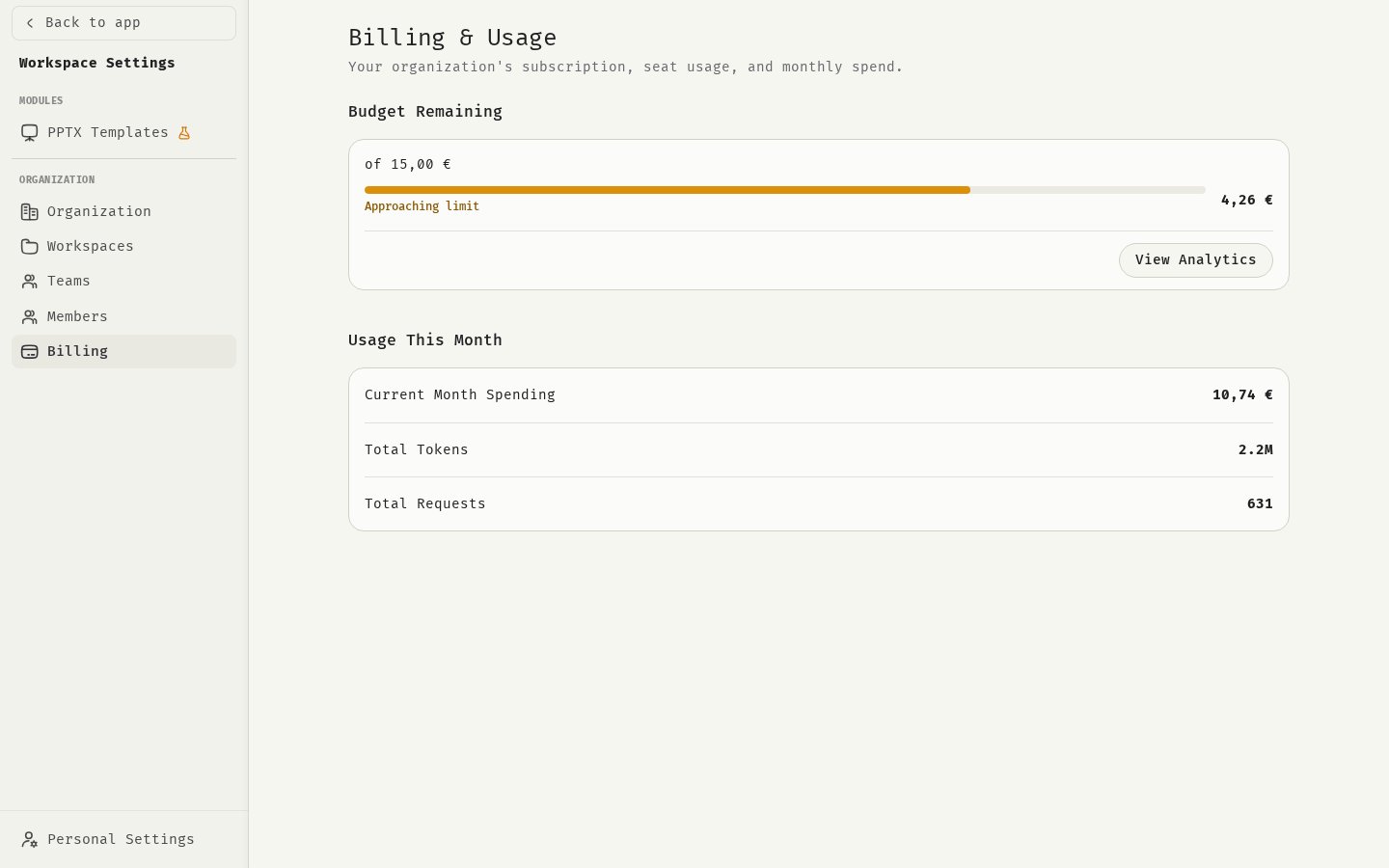
See your plan
- Open Settings and click Billing.
- If you belong to several organizations, switch to the right one with the organization switcher in the sidebar. The billing page always shows the organization you are working in.
- The plan name and the date of the next billing (Next billing).
- A status badge (see below).
- Seats used, with the number of seats remaining. See Seats.
- Manage Billing, which opens the customer portal. Only Owners see this button. See Invoices and customer portal.
Subscription status
When the status blocks chat, members see an error when they send a message. Their chats stay readable.
Billing banners for Owners
Owners see a banner at the top of the app when the subscription needs attention:- “Your billing is incomplete…”: click Go to Billing to open the customer portal and complete the payment.
- “Your organization has no active subscription…”: contact BlackMountain to set up or restart billing.
Free pass
Some organizations start on a 7 Day Free Pass. A banner shows how many days remain. When the pass ends, contact BlackMountain to continue with a paid plan.Features on higher plans
Some features are part of a bigger plan, for example premium models, Integrations, the Editor and Radar. If your plan doesn’t include one, members see a Pro badge on it or an upgrade page.Change your plan
To upgrade, change seats or cancel, contact BlackMountain. The upgrade page in the app has a Contact us button for this.Related
Seats
How seats are counted.
Invoices and customer portal
Payment methods and invoices.
Usage limits
Spend limits and what happens at the limit.
Premium models
Models on higher plans.