

Requires the Integrations (MCP) feature to be enabled for your organization. Ask your administrator if you can’t see it.
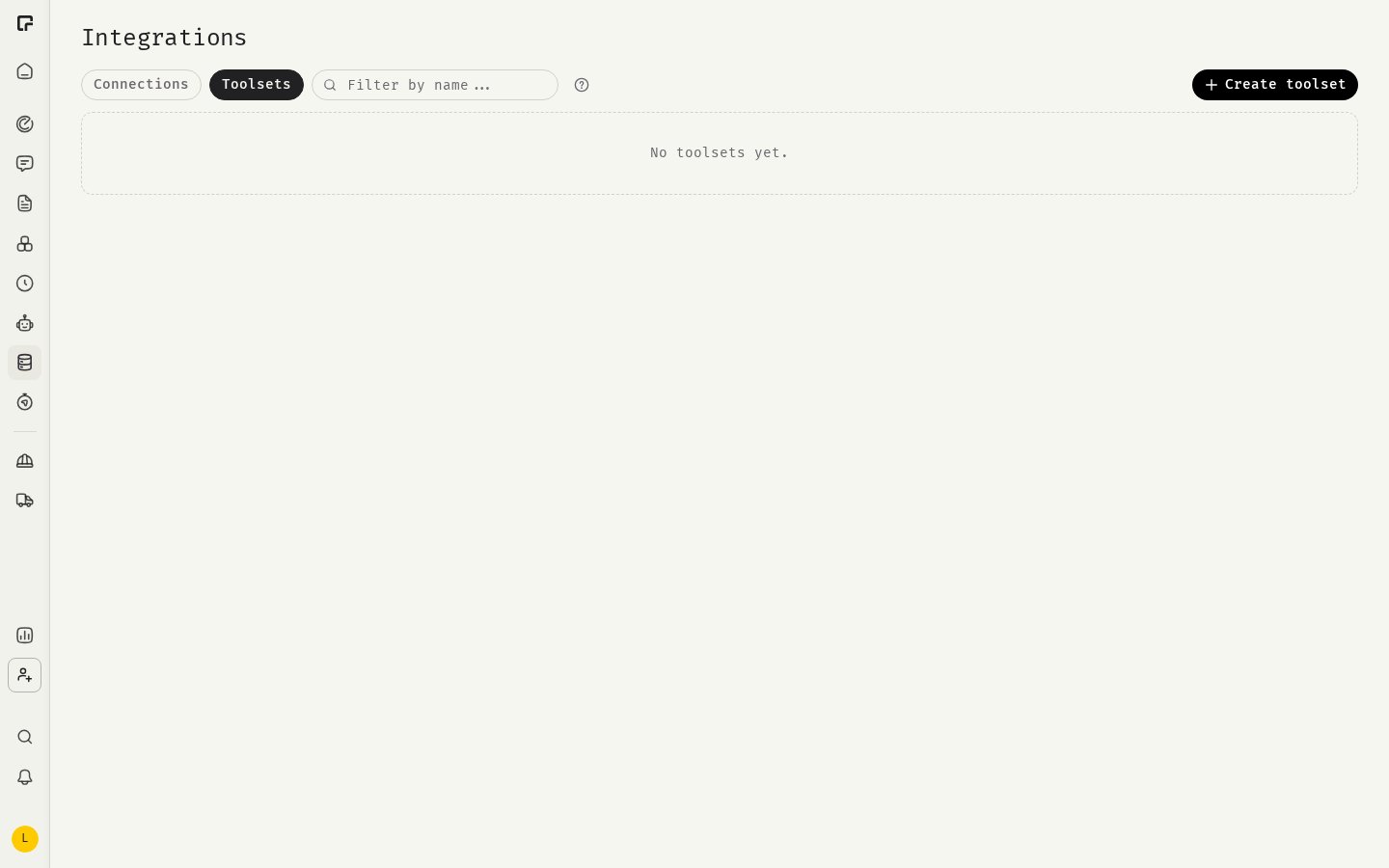
Before you start
- The integrations you want to bundle must be enabled for your organization. See Organization MCP servers.
- You can only add a server to a toolset after you’ve connected your own account to it, if it needs a sign-in or key.
Create a toolset
- Click Integrations in the sidebar and open the Toolsets tab.
- Click Create toolset.
- Under Identity, enter a Name and an optional Description.
- Under Visibility, choose who can use it (see below).
- Under Servers & tools, click Add a server and pick an integration. Repeat for each integration you need.
- Click Create.
Choose which tools are on
Each server in a toolset has a default switch, and each of its tools can override it.- Turn the server default on to include all its tools, or off to include none.
- Set a single tool to On or Off to override the default. Click Reset to server default to remove the override.
- Click Refresh tools when a server has added new tools.
Share a toolset
To share with a team, workspace or organization, you need to be an Owner or Manager there. Viewers see shared toolsets read-only.
A toolset only shares the selection of tools, never credentials. Each member needs their own connection to every integration in the toolset. Tools for integrations a member hasn’t connected don’t run for them.
Manage toolsets
The Toolsets tab groups toolsets into Personal and Shared. From a toolset’s menu you can Duplicate it, for example to start a team version from your own, or delete it. The editor flags servers that need attention:Use toolsets with assistants
Attach a toolset in an assistant’s tools settings. Everyone who can use the assistant can use it, but the toolset’s tools only work for people who can also use the toolset. Match the toolset’s visibility to the assistant’s, so that everyone gets the same tools.Related
Organization MCP servers
Enable integrations for your organization.
Assistant tools and toolsets
Attach toolsets to assistants.
Integrations in chat
How members use toolsets in chat.
Visibility and governance
Sharing rules across 48°.