

Members
The Members page lists everyone in the organization under Active, and open invitations under Pending. Search by name or email, filter by role, or click Export CSV to download the list.Change an organization role
- Open the row menu next to the member and select Change Role.
- Pick the new role and save.
Assign a member to workspaces and teams
- Click the member, or select View Details in the row menu.
- Click Assign to workspaces & teams.
- Pick the workspaces and teams and a role for each, then click Assign.
Remove a member
- Open the row menu next to the member and select Remove, or open the member and use Remove Member under Danger Zone.
- Confirm.
The only Owner of an organization can’t be removed. Make another member an Owner first.
Workspaces
Create a workspace
- Open Workspaces and click Create workspace.
- Enter a Workspace Name. Optionally add an AI Context.
- Click Create.
Manage a workspace
Open a workspace from the list. It has three tabs:- Teams: the teams in this workspace. Click Create Team to add one.
- Members: people with a direct role in this workspace. Click Invite Member to add people, select Change Role in a row menu, or select several members and remove them together.
- Context: the workspace’s AI Context. Assistants can read it when a question is about this workspace.
Delete a workspace
Only Owners can delete. Open the workspace, go to Danger Zone and click Delete Workspace. This permanently deletes the workspace and all its teams.Teams
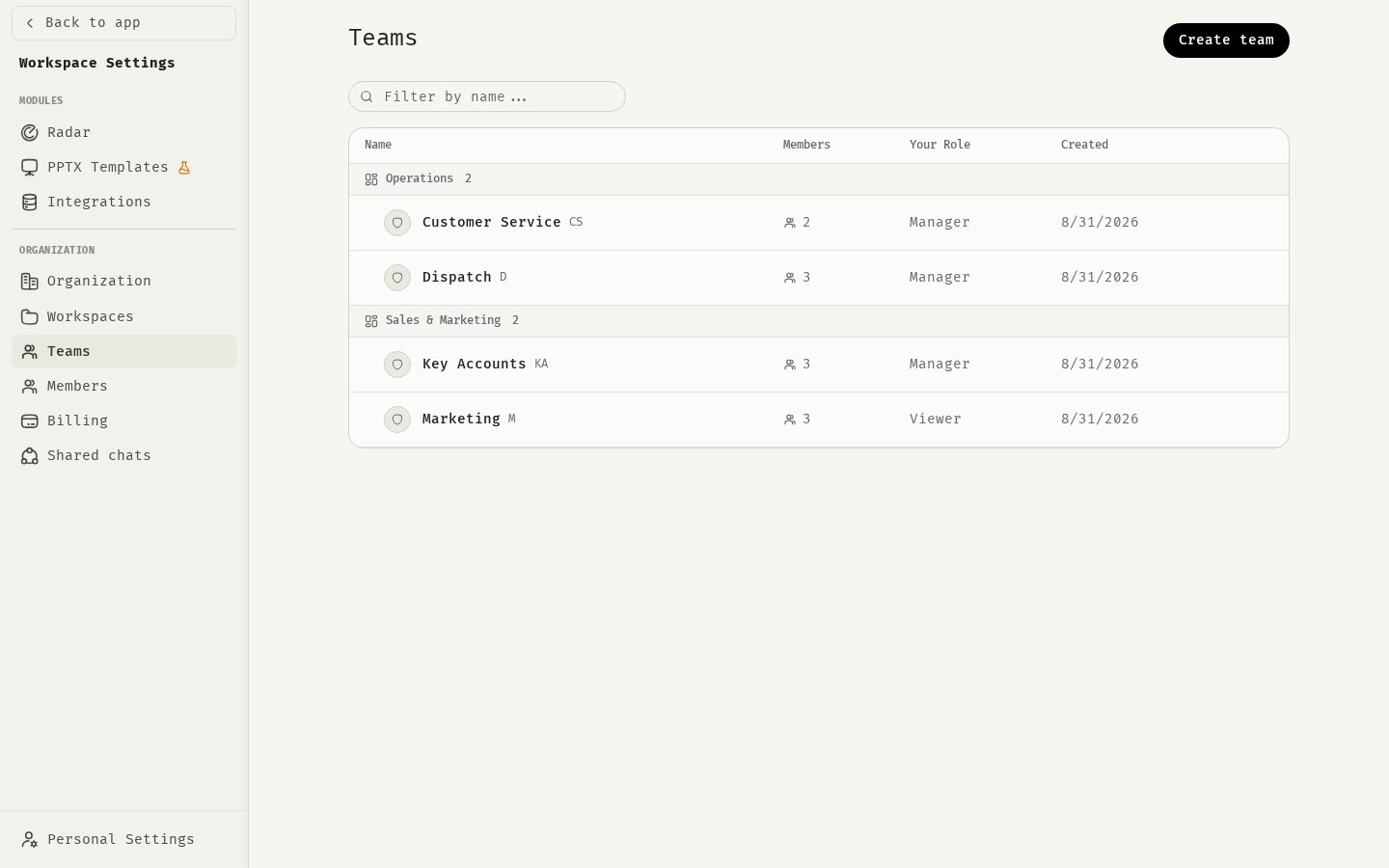
Create a team
- Open Teams and click Create team.
- Choose the Workspace the team belongs to and enter a Team Name. Optionally add an AI Context.
- Click Create.
Manage a team
Open a team from the list. You can:- Edit the name and Description on the Settings tab. The Identifier is generated from the team name.
- Add people with Add Member. Pick existing organization members, or add 48° users By email. People who aren’t in the workspace or organization yet are added there as Viewers.
- Change roles, remove individual members with Remove from Team, or select several and remove them together.
- Edit the team’s AI Context on the Context tab.
Delete a team
Only Owners can delete. Open the team, go to Danger Zone and click Delete Team. This can’t be undone, and it also deletes assistants and prompt templates shared with the team.What Viewers see
Owners and Managers of the organization see every workspace and team. A Viewer sees only the workspaces and teams they are a direct member of.Related
Inviting members
Bring new people into the organization.
Roles and permissions
Full permission matrix.
Organization settings
Name, branding, AI context and models.
Seats
How members count toward your plan.