

Requires the Integrations (MCP) feature to be enabled for your organization. Ask your administrator if you can’t see it.
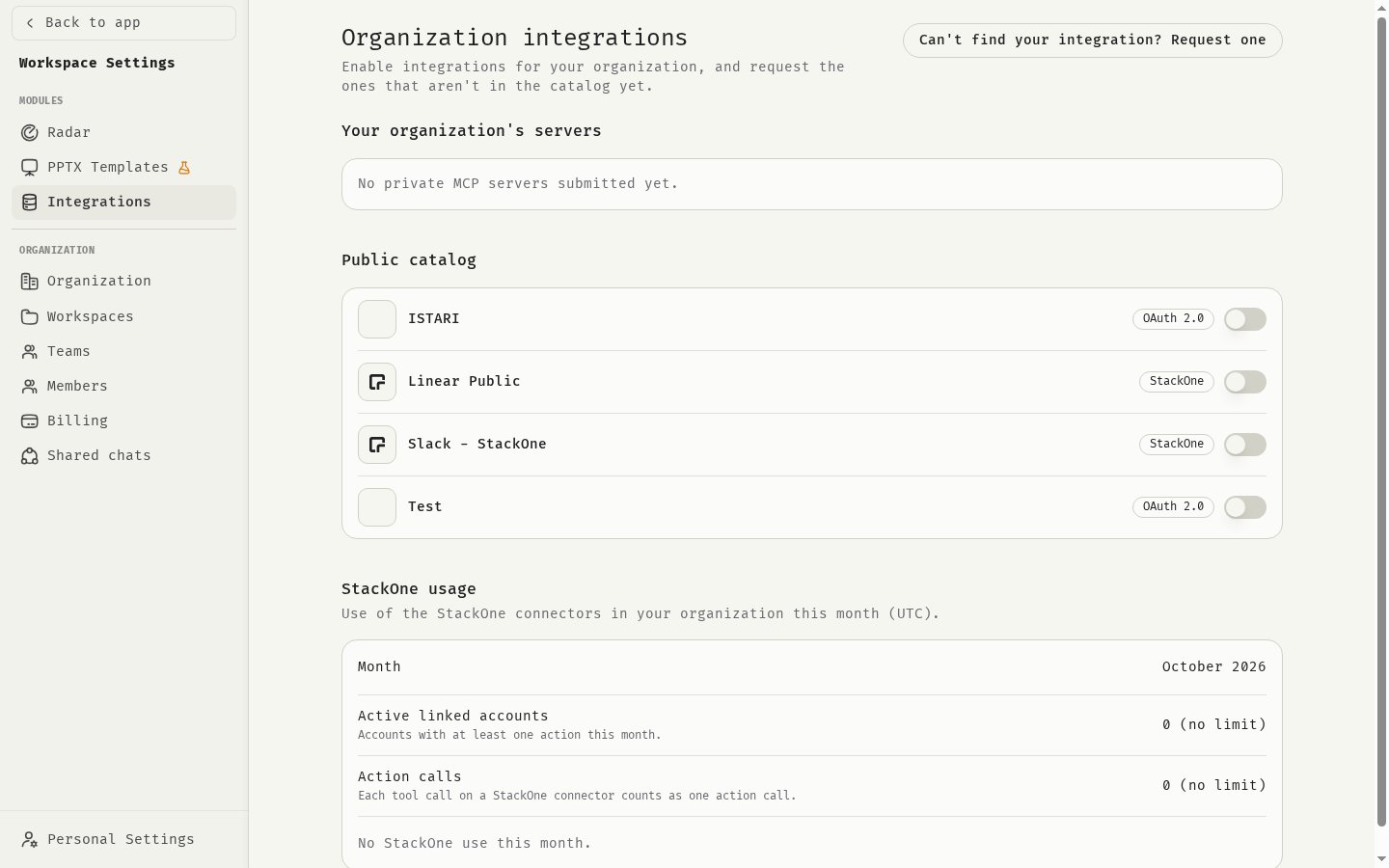
Open the integration settings
- Open the profile menu in the sidebar and select Workspace Settings.
- Under Modules, click Integrations.
- If you administer several organizations, choose one under Organization.
- Your organization’s servers: private servers your organization submitted.
- Public catalog: servers BlackMountain offers to all organizations.
Enable a catalog server
- Find the server under Public catalog.
- Turn on its switch.
Servers that need setup
Some servers need your organization’s own app with the provider before anyone can connect, for example an OAuth app. These show a Setup required badge, and members see Waiting for admin setup. Members can copy a link for you from the connect window. It opens this page with the right server. To finish the setup:- Make sure the server is switched on, then click Configure for this organization next to it.
- Copy the Redirect URI.
- In the provider’s developer console, register an app (sometimes called a custom connector or OAuth client) and enter the redirect URI as its redirect or callback URL. Follow the server’s setup guide if one is linked.
- Back in 48°, choose This organization’s client, paste the Client ID and Client secret, and save.
Submit a private MCP server
If a tool isn’t in the catalog, you can register your own MCP server for your organization only.- Click Can’t find your integration? Request one.
- Fill in the form:
- Name and an optional Description and Icon URL.
- URL of the MCP server endpoint. It must be reachable over the internet.
- Transport: HTTP or SSE.
- Authentication: None, API key, OAuth 2.0 or Header.
- Under Advanced settings, the Alias is generated from the name. Change it only if you need a specific one. It can’t be changed after submission.
- Click Submit for review.
For an approved OAuth server, manage its OAuth client with the OAuth client key button next to it.
Delete a private server
Switch the server off first, then click Delete. Members’ connections to it and its toolset entries are deleted too. You can submit it again later.How members use integrations
- Each member connects their own account or API key. Credentials are stored encrypted, per member and per organization. Nobody sees anyone else’s connection.
- Members use an integration in chat by picking a toolset or an assistant that includes it.
- Content from an integration is sent to the AI model, and the model can act in the connected tool on the member’s behalf.
Related
Toolsets
Bundle integration tools for assistants and teams.
Google Workspace setup
Connect Gmail, Drive, Calendar and more.
Microsoft 365 setup
Connect Outlook, OneDrive, Teams and SharePoint.
Connections
How members connect their accounts.