

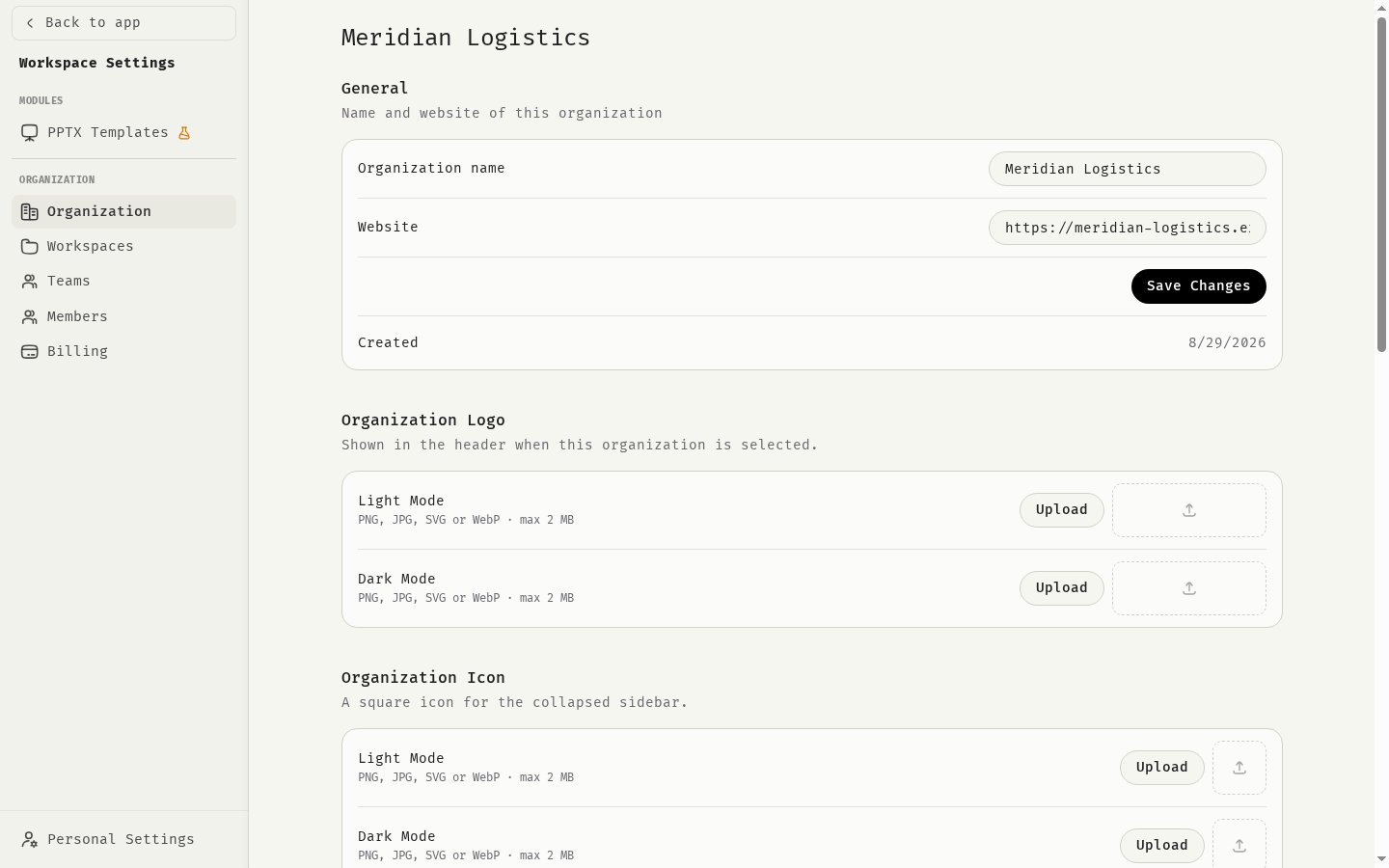
General
Change the fields and click Save Changes.
Trial organizations can’t be renamed.
Logo and icon
Your logo is shown in the header whenever this organization is selected.- Organization Logo: the wordmark shown in the header. Upload one version for Light Mode and one for Dark Mode.
- Organization Icon: a square icon shown in the collapsed sidebar, again with a light and a dark version.
AI Context
Describe your organization in AI Context: your industry, products, customers, tone of voice or any other background. Assistants can read this context during a chat when a question is about your organization, so answers fit your company. Write the text and click Save Context. Workspaces and teams have their own AI context for more specific information. See Company context.AI Models
Owners can choose which model 48° uses for built-in tasks in this organization. Every setting starts on Platform default. Leave it there unless you have a reason to change it, for example to keep processing in the EU.
Each list only shows models that can do that task. Changes apply right away and are recorded in the audit log.
These settings don’t change which models members can pick in chat. See Model availability.
Create another organization
Owners and Managers can create an additional organization under Create Organization. Enter a name and, optionally, an AI context. You become the Owner of the new organization. Each organization has its own members, billing and settings.Danger Zone
- Leave Organization: removes you from the organization and all its workspaces and teams. The only Owner can’t leave.
- Delete Organization (Owners only): permanently deletes the organization with all its workspaces, teams and data. This can’t be undone.
Related
Organization hierarchy
How organizations, workspaces and teams fit together.
Model availability
Which models your members can use.
Company context
How assistants use your AI context.
Data residency
Where your data is processed.