

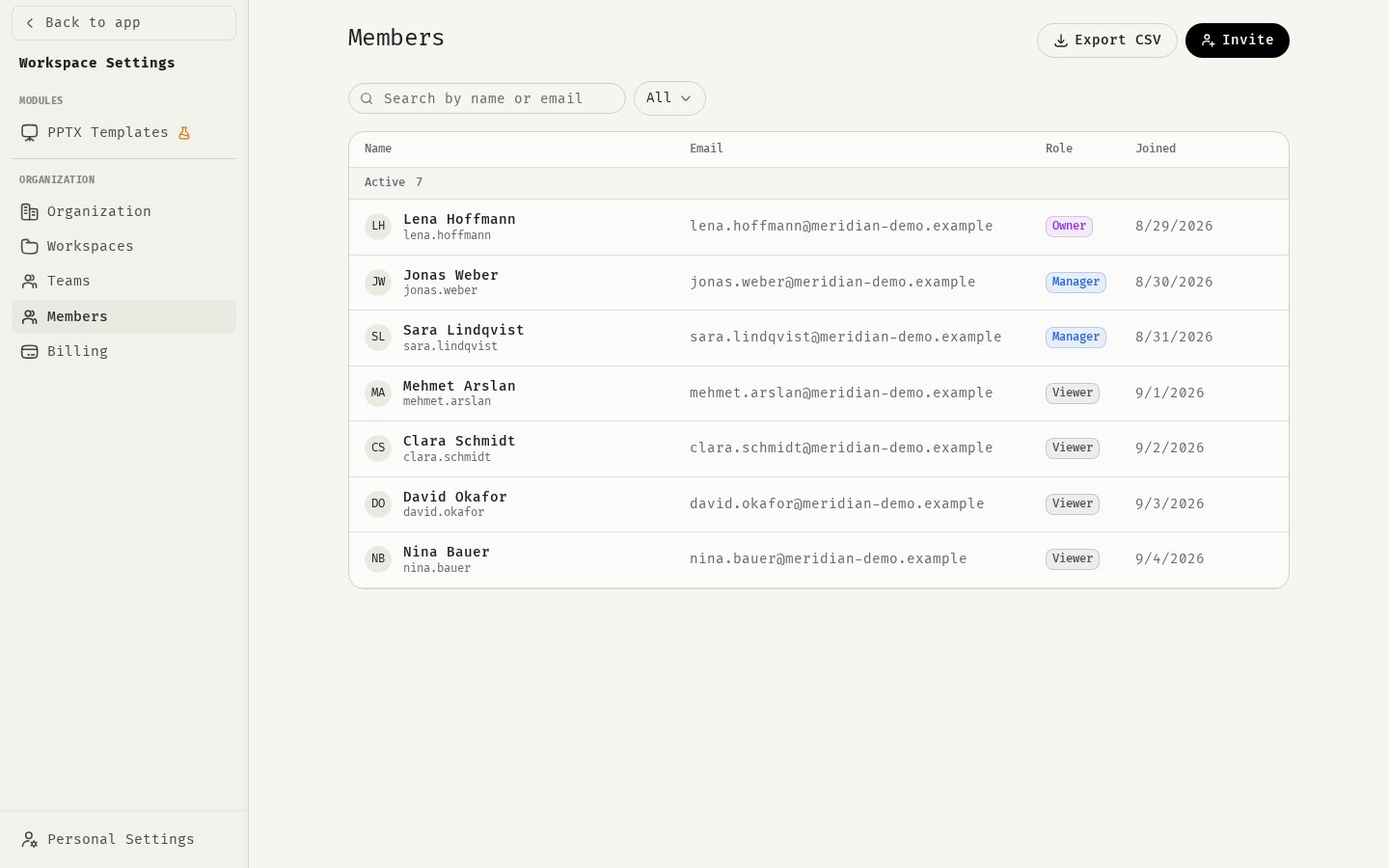
Invite one person
- Open the profile menu in the sidebar and select Workspace Settings.
- Open Members and click Invite.
- Keep Single selected and enter the Email Address.
- Choose a Role for the organization: Viewer, Manager or Owner.
- Optional: under Also add to workspaces & teams, pick workspaces or teams and a role for each. The invitee joins them when they accept.
- Click Send Invite.
Invite many people at once
- In Invite, switch to Bulk.
- Paste the addresses into Email Addresses. Put one per line, or separate them with commas or semicolons.
- Choose the Role (applied to all) and, if needed, workspaces and teams.
- Click Send … Invites.
What the invitee sees
- The invitee gets an email with a link to join your organization.
- The link opens an invitation page. If they aren’t signed in, they sign in first and return to the page.
- They click Accept Invitation. They join the organization with the role you chose, plus any workspaces and teams you picked.
Expiry and resending
- Invitations expire after 7 days. After that the link no longer works.
- To resend an invitation, invite the same email address again. This replaces the earlier invitation, so the old link stops working and a new 7-day period starts.
- You can’t invite someone who is already a member of the organization.
Manage pending invitations
Pending invitations appear on the Members page in the Pending group. Each row shows who sent it and when it expires. To cancel an invitation, click the envelope icon at the end of its row. The link stops working immediately.Seat limits
Each invitation needs a free seat. If your organization has used all of its seats, the invitation is refused with a seat-limit message. Free a seat by removing a member, or add seats to your plan. See Seats.Add existing users without an invitation
If someone already has a 48° account, you can add them straight to a workspace or team:- Open the workspace under Workspaces or the team under Teams.
- Click Invite Member (workspace) or Add Member (team).
- Pick them on From organization, or enter their address on By email. Turn on Add multiple to add several at once.
- Choose a role and confirm.
Related
Roles and permissions
Choose the right role for each person.
Manage members, workspaces and teams
Change roles, assign and remove members.
Seats
How seats are counted.
Rollout playbook
Plan how you bring your company onto 48°.