

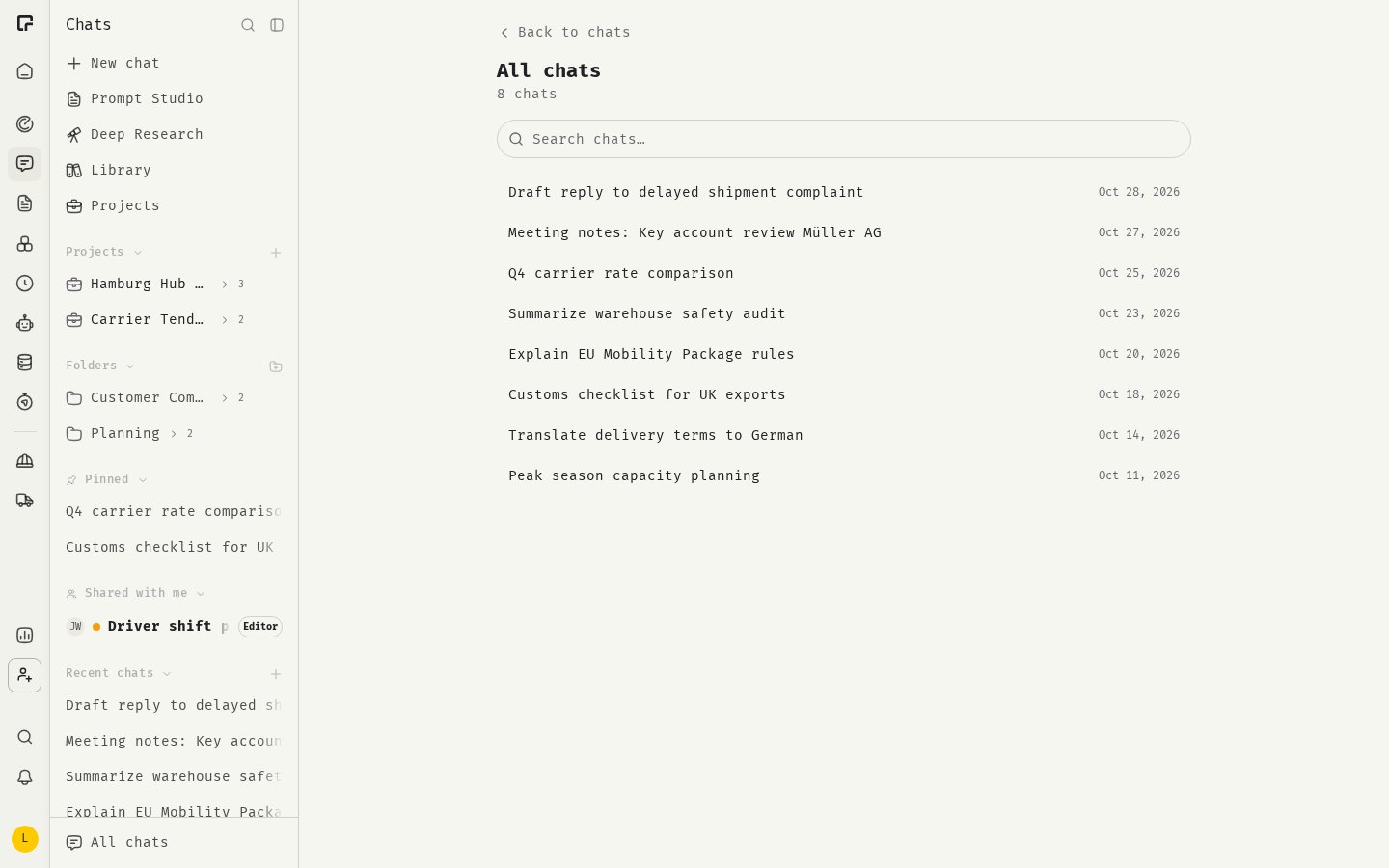
The Chats sidebar
The sidebar is split into sections:- Projects — your projects and the chats inside them.
- Folders — the folders you created.
- Pinned — chats you pinned. This section appears once you pin a chat.
- Shared with me — chats others have shared with you, if chat sharing is on for your organization.
- Recent chats — your latest chats, newest first.
Chat actions
Hover over a chat in the sidebar and click the … menu to see its actions:- Pin chat / Unpin chat
- Share chat (if chat sharing is on)
- Rename chat
- Move to folder
- Archive
- Delete
Pin a chat
Open the chat’s … menu and click Pin chat. The chat moves to the Pinned section. Click Unpin chat to move it back to Recent chats.Rename a chat
48° gives each chat a title based on your first message. To change it:- Open the chat’s … menu and click Rename chat.
- Enter a new name and save.
Folders
Folders help you group chats by topic, client or task.Create a folder
- Next to Folders in the sidebar, click Create new folder.
- Enter a Folder Name.
- Optionally, choose a Parent Folder to create a sub-folder.
- Save.
Move a chat into a folder
- Open the chat’s … menu.
- Click Move to folder and pick a folder.
Archive a chat
Archiving removes a chat from the sidebar without deleting it.- To archive, open the chat’s … menu and click Archive.
- To find archived chats, open Personal Settings > Chats and go to Archived Chats.
- To restore a chat, click Unarchive. To remove it for good, click Delete permanently.
Delete a chat
Open the chat’s … menu and click Delete, then confirm. The chat and all its messages are deleted permanently. This cannot be undone.All chats
The sidebar shows only your most recent chats. To see every chat, click All chats at the bottom of the Chats panel. The page lists all chats that are not archived and has a search field to filter them by title.Search
There are two ways to search.Search chat titles
Click Search chats in the Chats panel header. Type to filter your chats by title. Results are grouped into Today, Previous 7 Days, Previous 30 Days and Older. Use the arrow keys and Enter to open a chat. To search inside messages instead, click Search messages for … at the bottom of the list.Search messages
Press Ctrl+K (Cmd+K on Mac) to search the text of your messages across all chats. Type at least 2 characters.- Click Filters to narrow the results by Date or Model.
- The search first covers your most recent chats. To include older ones, click Search older chats.
Related
Projects
Group chats with shared instructions and files.
Sharing chats
Give colleagues access to a chat.
Export and import
Download your chats as a zip archive.
Chat settings
Defaults and archived chats.