

Start a new chat
- On the home page, type into the Ask anything… field and send.
- In the Chats sidebar, click New chat.
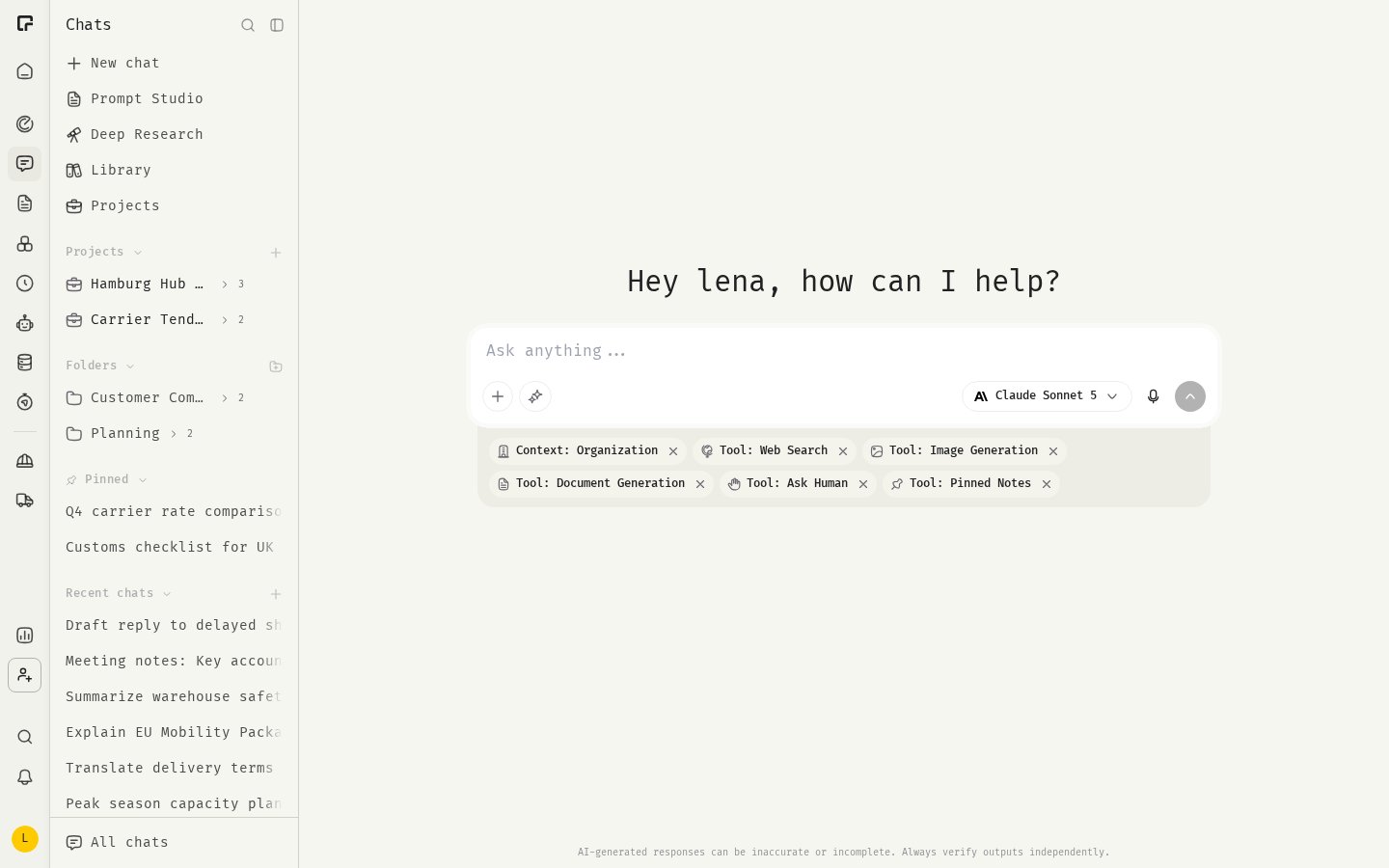
Choose a model
The model selector sits at the bottom right of the composer, next to the send button.- Click the model name.
- Pick a model from the list. Models are grouped by provider, for example OpenAI, Anthropic, Google and Mistral.
- Hover over a model to see its description, Speed, Cost and capabilities such as Vision, File Upload, Thinking and Web Search.
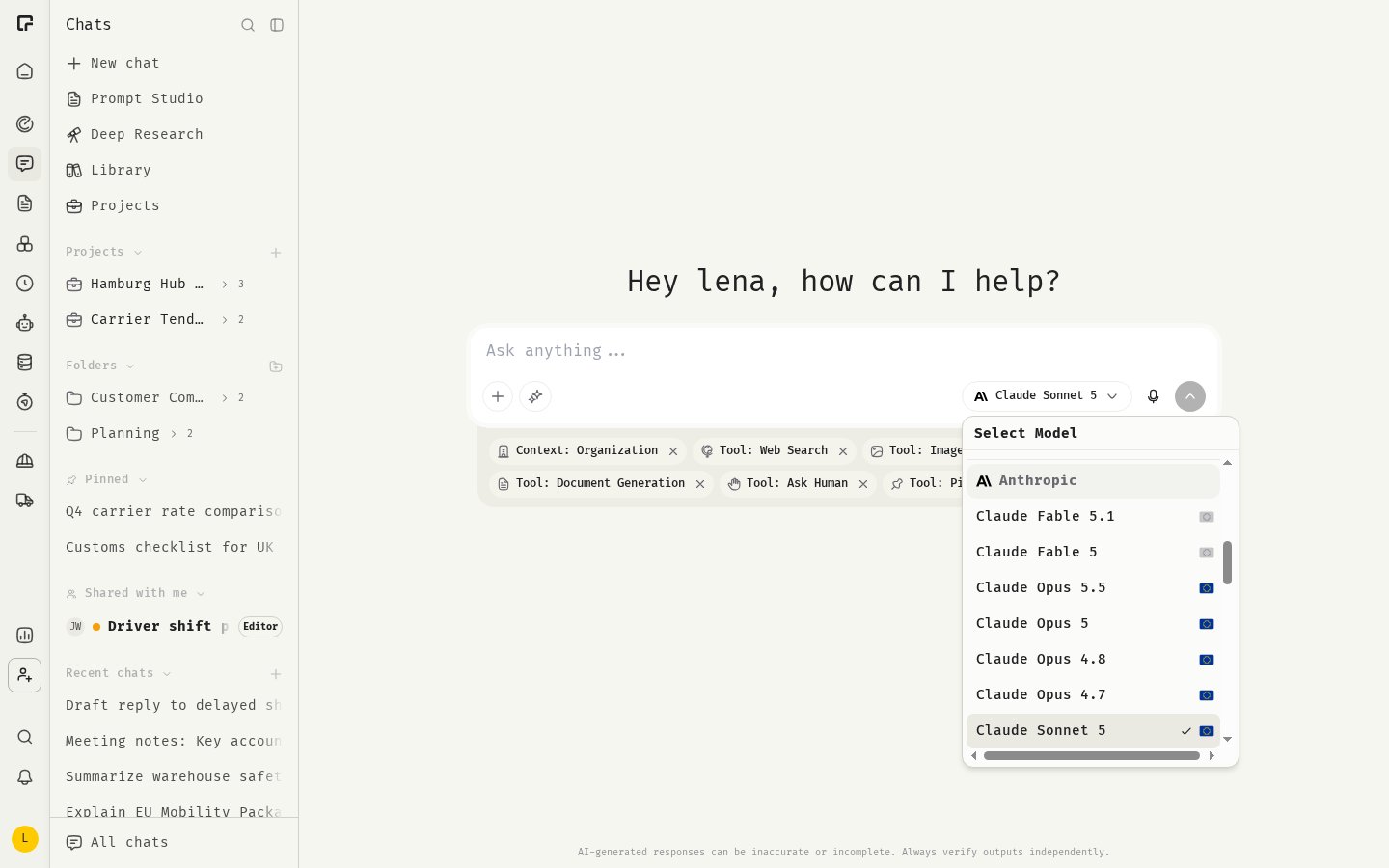
Thinking level
Some models can reason before they answer. When the selected model supports this, the model selector shows a Thinking Level slider with Auto, Low, Medium and High. More thinking gives more thorough answers, but takes longer and costs more.Send a message
- Type your message in the composer.
- Press the send shortcut or click Send message.
You can change this later under Send message shortcut in Chat settings.
While the model works, you see a short status such as Thinking, Searching or Creating. The answer then streams in. If you reload the page or open the chat on another device, the answer keeps running and shows up there too.
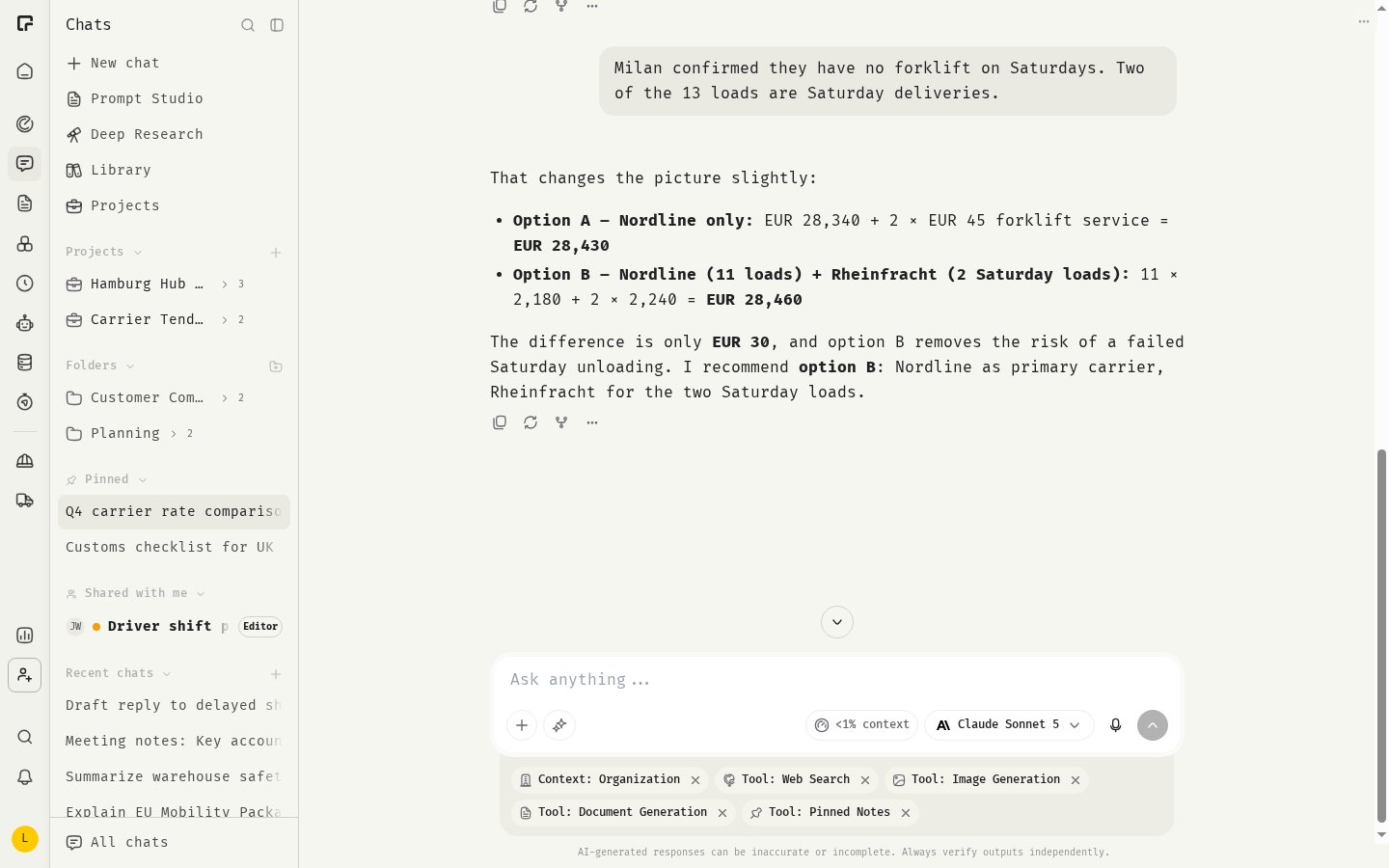
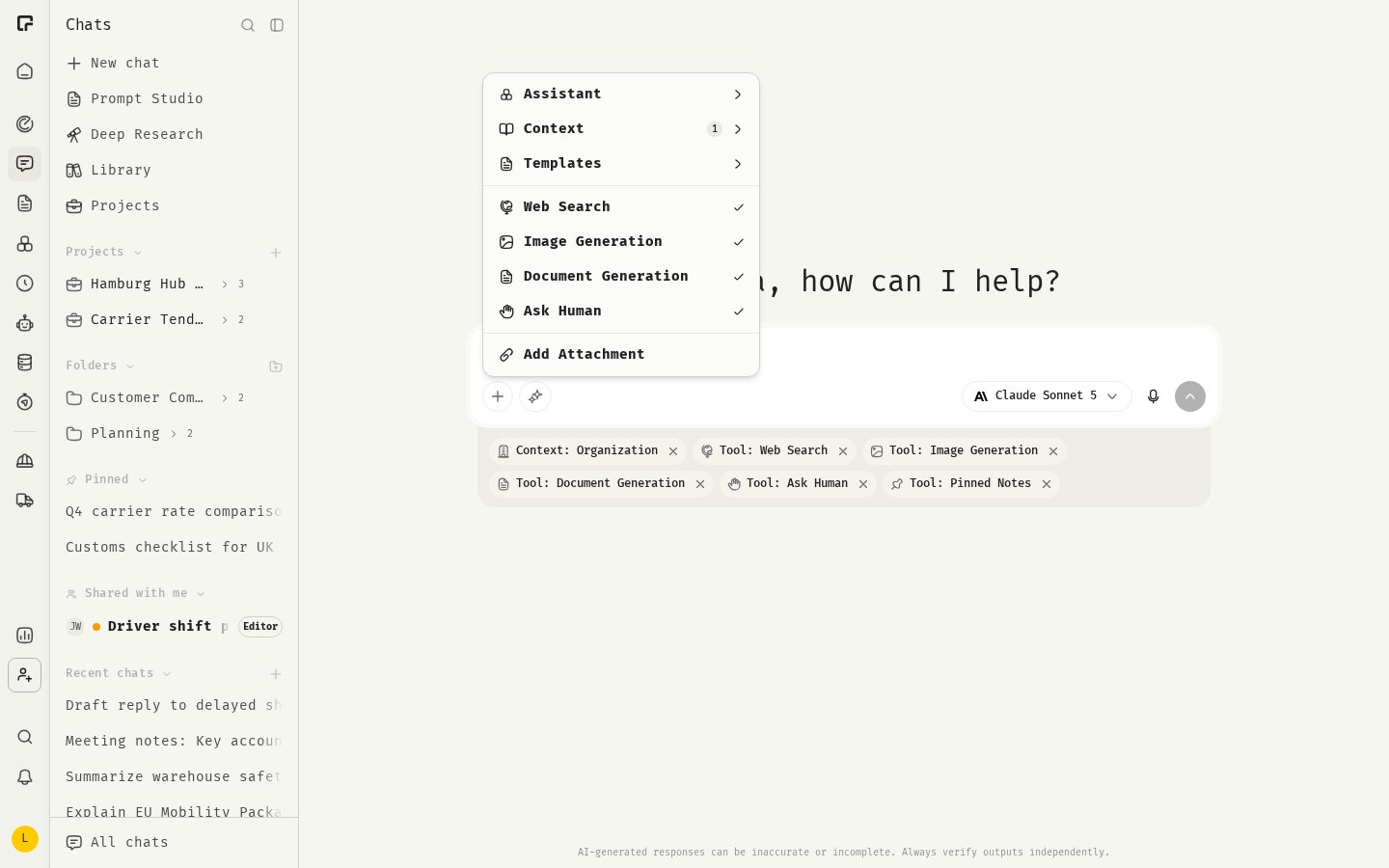
The + menu
Click + in the composer, or type @, to open the menu for everything you can add to a chat:- Assistant, Toolset and MCP server, see Using assistants in chat and Integrations in chat.
- Context, see Profiles and context.
- Templates, see Prompt Studio.
- Tool toggles such as Web Search, Image Generation and Document Generation.
- Add Attachment, see Attachments.
Voice input
Click the microphone icon (Dictate a message) to speak instead of type.- Click the microphone and allow microphone access if your browser asks.
- Speak your message.
- Click Stop recording. 48° transcribes the recording and adds the text to the composer.
Stop a response
While an answer is being generated, the send button turns into a stop button. Click it to stop. If the answer has been running for a while, 48° asks you to confirm with Stop generating. Everything generated so far is saved, and the chat shows Response stopped.Work with answers and messages
Hover over a message to see its actions. On an answer:- Copy copies the answer text.
- Refresh generates a new answer to the same message.
- Fork from here starts a new chat that contains the conversation up to this message.
- More opens Export as Markdown, Pin as note and Report.
- Copy copies the message.
- Edit lets you change the message. Click Update to send the new version and get a new answer.
- Fork from here works the same as on an answer.
Select text in an answer
Select text in a message and right-click it:- Ask about this quotes the selection in the composer so you can ask a follow-up about it.
- Pin as note saves the selection as a pinned note for this chat, see Pinned notes.
Report an answer
If an answer is offensive, harmful, inaccurate or reveals private information, open More and click Report. Choose a reason, add details if you like, and click Send report.Related
Attachments
Add files and images to a message.
Organizing chats
Pin, file, rename and find your chats.
Model guide
Which model to use for what.
Context window
Keep long chats working well.