

Context sources
There are three context sources, one for each level of your organization:
A source only applies when context has been written for it. The sources that apply in a chat are the ones for the organization, workspace and team you have selected in the sidebar’s switcher. To use a different team’s context, switch to that team first. See Organizations, workspaces and teams.
How the assistant uses context
The assistant looks up context when it helps, for example when you ask about your company or when the answer depends on how your team works. While it does, you see a short status such as Checking your organization… or Checked your team. For details and example prompts, see Company context.Context in a chat
To see which context sources are active in a chat:- In the composer, click + (or type @).
- Open Context.
Defaults for new chats
To choose which sources are on when you start a new chat:- Open Personal Settings > Chats.
- Under Context, turn Organization, Workspace and Team on or off.
Write the AI Context
Owners and Managers write the AI Context in the settings of the organization, workspace or team. Members can’t edit it. See Organization settings. Good AI Context is short and factual. Describe what the assistant should know and how it should behave, for example: “We are a B2B software company in healthcare. We write in a professional but approachable tone.”AI Profiles
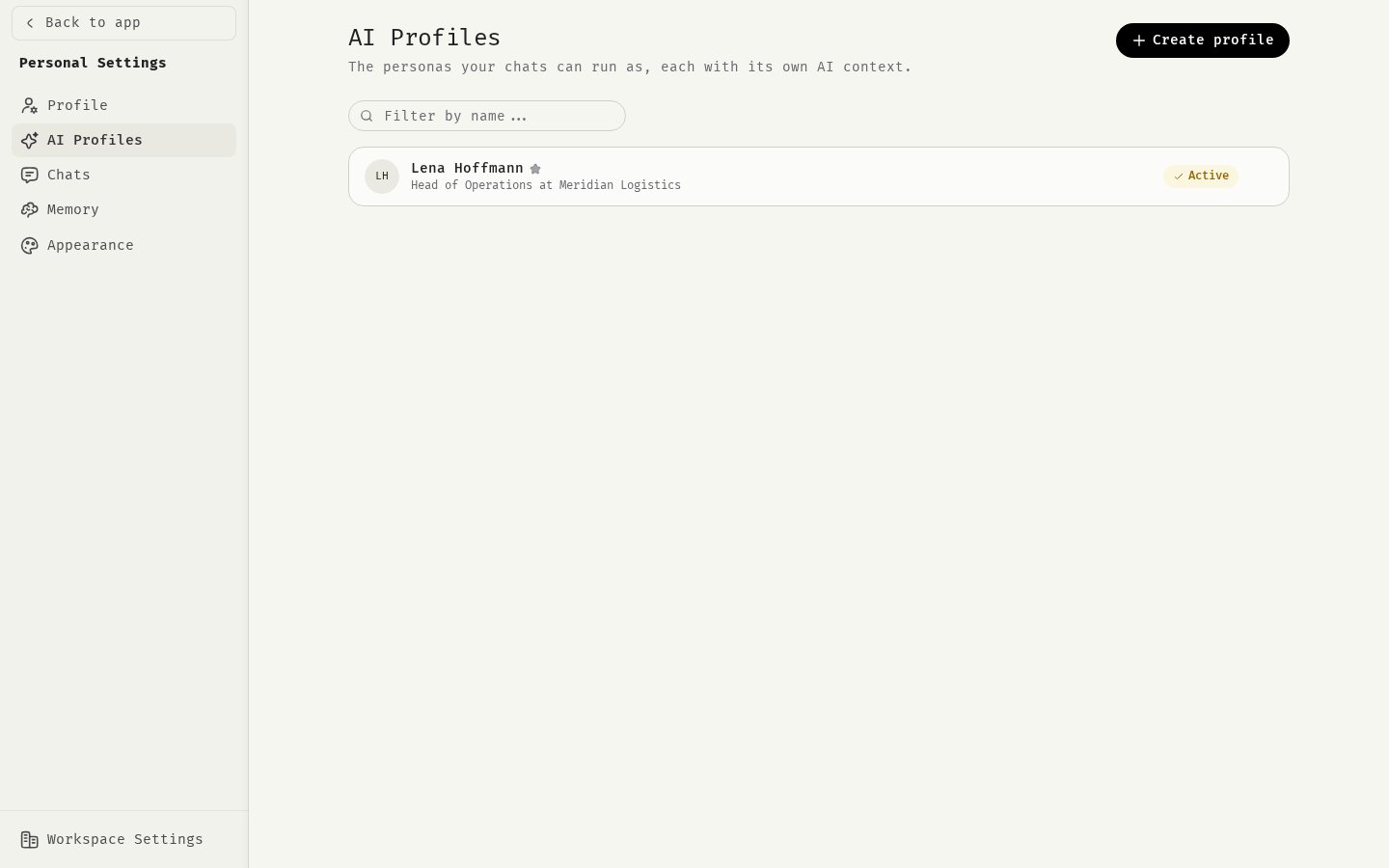
Personal Settings > AI Profiles lists your profiles: personas with a Name, a Short Description, an avatar and their own AI Context. You can create profiles, edit them, delete them and mark one with Set as Default.Profile context is currently not added to your chats. To give the assistant background about your work, use the organization, workspace and team context described above.
Related
Company context
What the assistant reads and example prompts.
Chat settings
Defaults for new chats.
Organizations, workspaces and teams
How the hierarchy works.
Projects
Instructions and files for one piece of work.