

Requires the Editor feature to be enabled for your organization. Ask your administrator if you can’t see it.
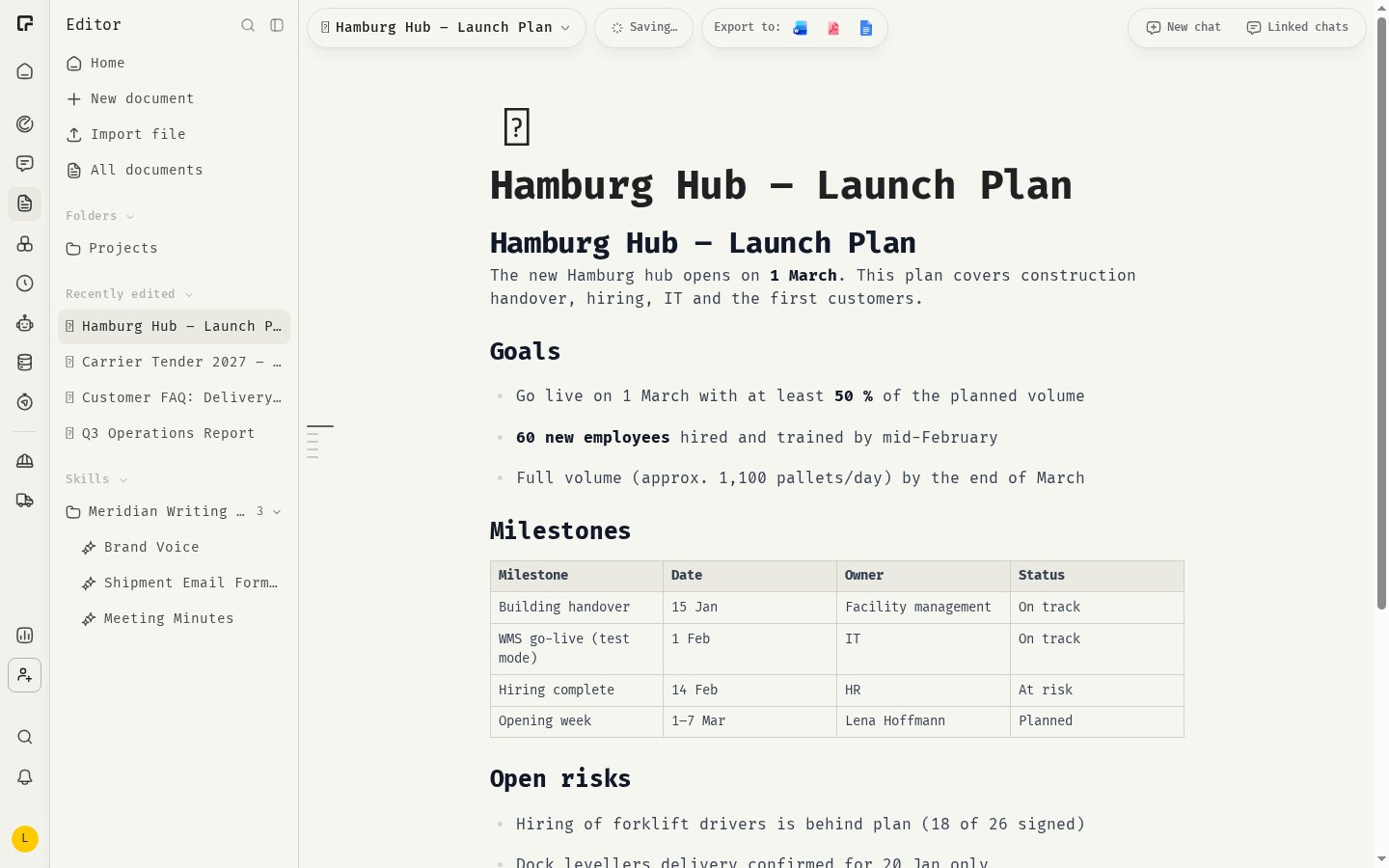
Rewrite a selection
- Select the text you want to change. The formatting bar appears.
- Click Ask AI.
- Describe the change in Describe the change…, for example “Turn this into a bulleted list” or “Make it sound friendlier”.
- Press Enter or click Rewrite.
Quick actions
Below the input, one click runs a common rewrite right away:- Make it shorter
- Expand on this
- Fix spelling & grammar
- Simplify the language
- More professional
Apply a skill
If your organization uses Skills, you can pick one skill under Apply a skill. Its instructions guide the rewrite, for example your brand voice or a writing checklist. Choose No skill to rewrite without one.What gets rewritten
Ask AI works on whole blocks, such as paragraphs, headings or list items. If your selection starts or ends in the middle of a paragraph, the whole paragraph is rewritten. Select complete paragraphs to keep the result predictable. The rest of the document is not changed.Undo a rewrite
Each rewrite is saved as its own version, marked as made by the Assistant. To undo it, open Version history and restore the version before it. See Revisions and restore. If your organization uses PII protection, personal data in the selection is masked before it reaches the AI model and restored in the result.Related
Editor side panel
Let the assistant edit the whole document from a chat.
Revisions and restore
Undo any change, including AI rewrites.