

Requires the Editor feature to be enabled for your organization. Ask your administrator if you can’t see it.
What you can do
- Write and format documents with headings, lists, checklists, quotes, code blocks, tables and links.
- Ask the assistant in a chat to draft a document. It opens next to the conversation and you can edit it there.
- Select text and rewrite it with Ask AI.
- Organize documents in folders and import existing files.
- Go back to any earlier version.
- Export a document to Word or PDF, or open it in Google Docs.
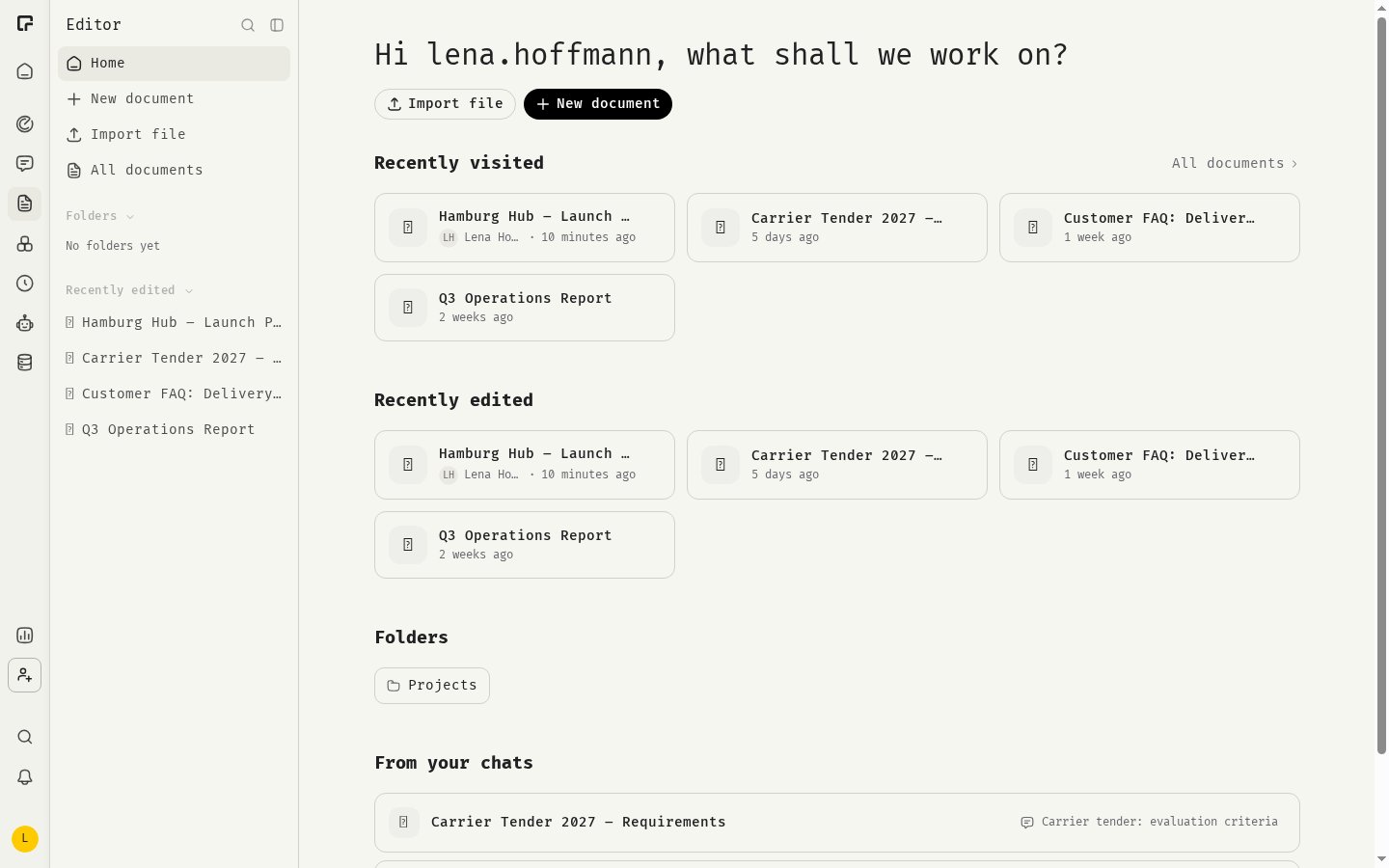
Editor Home
Click Editor in the main navigation to open Home. It shows:- Recently visited and Recently edited documents.
- Your Folders.
- From your chats: documents linked to your chats, with the chat each one belongs to.
Writing in a document
The first line of a document is its title. Below it, write as you would in any word processor:- Type
/to insert a block: text, headings, lists, a to-do list, a quote, a code block, a divider or a table. - Select text to get a formatting bar with bold, italic, links and more, plus Ask AI.
- Use the handle to the left of a block to insert a block below it or drag it to a new position.
- On wide screens, an outline of your headings appears in the left margin. Click a heading to jump to it.
Working with the assistant
Click New chat at the top of a document to start a chat with the document already open beside it. The assistant can read and edit it from the first message. See Editor side panel. Documents are private to you. Only you and the assistant, acting for you, can read or change them.Export
Use the export buttons next to the document name:- Export to Word downloads a
.docxfile. - Export to PDF downloads a PDF.
- Open in Google Docs copies the document to your clipboard and opens a new, empty Google Doc. Paste the content there.
Related
Documents and folders
Create, import and organize documents.
Editor side panel
Work on a document next to your chat.
Editing with AI
Rewrite a selection in place.
Skills
Skills are written in the editor too.