

PPTX templates are an Experimental feature. Results depend on how your template is built, and complex elements such as SmartArt, embedded media and animations may not carry over.
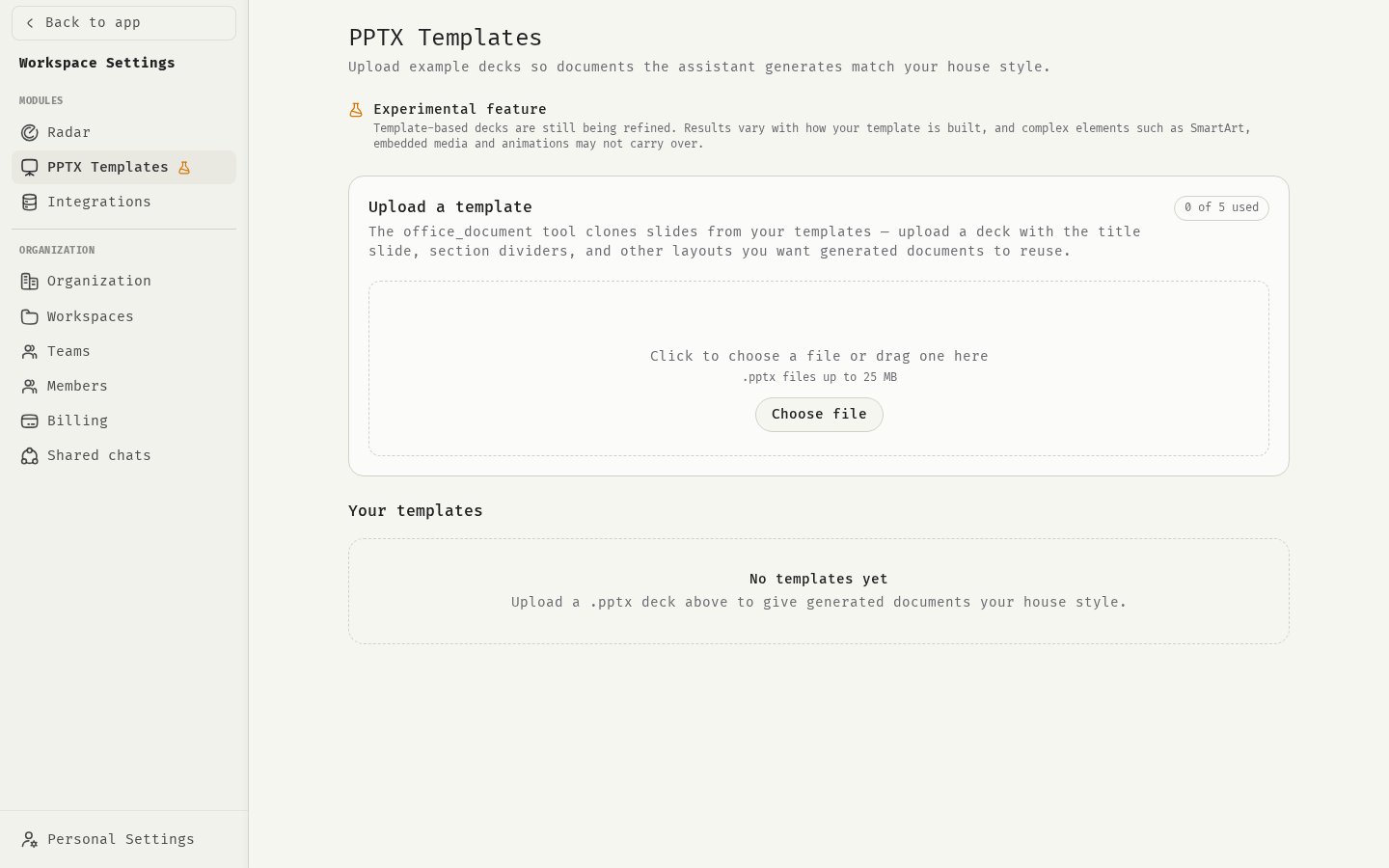
Upload a template
- Open your profile menu and choose Workspace Settings.
- Under Modules, select PPTX Templates.
- In Upload a template, click Choose file or drag a file into the box.
.pptx files of up to 25 MB. You can keep up to 5 templates per organization. To upload another, delete one first.
Templates belong to the organization you uploaded them in. The assistant only uses the templates of the organization you’re working in.
Analysis
After upload, 48° analyzes each slide: what it contains and what it is suited for. The template shows its status:
Click the slide toggle on a template, for example Show 8 slides, to see the analysis of each slide, with Contains and Use for. Click Preview to view the deck itself.
The description
Each template has a Description that tells the assistant what the template is for and when to use it. After analysis it is filled in for you. You can edit it, up to 4,000 characters, for example “Use for customer-facing pitch decks”. Click Reset to generated to go back to the generated description. If analysis fails, write the description yourself. The assistant uses it exactly like a generated one.Use a template in chat
- Make sure Document Generation is turned on in the composer’s Add files and more menu.
- Ask for a new presentation, for example “Create a 10-slide deck on our Q3 results using my pitch template”.
Delete a template
Click the delete button on the template and confirm. The assistant can no longer use it. This can’t be undone.Related
Document generation
Create PowerPoint, Word, Excel and PDF files in chat.
Uploaded and generated files
Find the decks the assistant created.