

Requires the Skills feature to be enabled for your organization. Ask your administrator if you can’t see it.
SKILL.md file.
Create a skill
- Open Editor in the main navigation.
- In the sidebar, find the Skills section and click New skill.
- Enter a Title, for example “Tender review”.
- Enter a Description. The assistant reads this to decide when to use the skill, so describe the situation: “Use when reviewing a tender document for risks and deadlines.”
- Under Sharing, choose Private or Team. See Sharing skills.
- Click Create. The skill’s document opens.
- Write the instructions in the document. Describe when and how to perform the task, step by step.
The skill panel
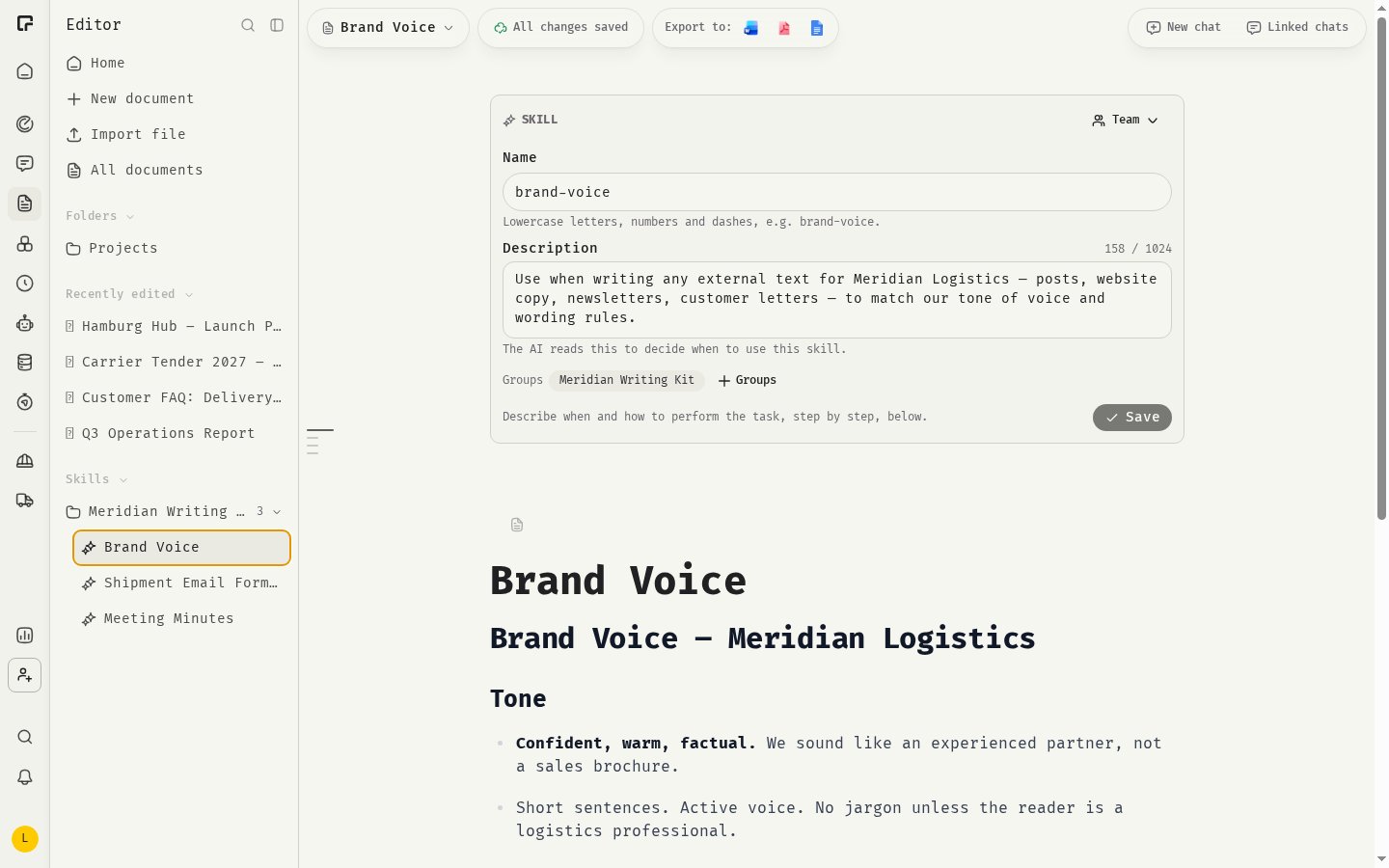
Above the instructions, the skill panel holds the settings the assistant sees:- Name: the machine name the assistant uses to load the skill. It is filled in from the title. Use lowercase letters, numbers and single dashes, for example
brand-voice, up to 64 characters. Each of your skills needs a different name. - Description: up to 1,024 characters.
- Sharing and Groups: these apply as soon as you change them.
Write good instructions
- Start with the goal and the expected result.
- List the steps in order. Number them if the order matters.
- Include checklists, templates, tone rules or examples the assistant should follow.
- Keep one task per skill. Several focused skills work better than one long one.
Import a SKILL.md file
If you already have a skill file with YAML frontmatter (the format used by Anthropic-style skills), you can import it.- In the Skills section, click Import SKILL.md.
- Choose a
.mdfile.
namein the frontmatter becomes the skill’s name. If you already have a skill with that name, a suffix is added.descriptionbecomes the description. It is required and can be up to 1,024 characters.- The markdown body becomes the instructions. Its first
#heading becomes the title.
Edit, rename or delete a skill
Click a skill in the Skills section to open its instructions. Open the ⋯ menu on the skill to:- Rename: changes the title shown in lists. The name the assistant sees stays the same; change it in the skill panel.
- Description and sharing: edit the description and who can use the skill.
- Groups: add the skill to or remove it from skill groups.
- Delete: deletes the skill and its instructions permanently.
Related
Attaching skills
Put your new skill to use.
Revisions and restore
Go back to an earlier version of the instructions.